Overview
A connector lets Gety index content from a source outside your normal local file index, such as a web service, an internal tool, or another workflow.
What connectors are for
Gety searches files on your computer. A connector adds another searchable source. It pulls records from that source, turns them into searchable documents, and sends them to Gety on a schedule.
Use a connector when you want to:
- Search external tools together with your local files
- Keep source data in place instead of copying it into files
- Give AI tools connected to Gety more local search context
Install only trusted connectors
A connector is code that runs locally on your computer. It can read the configuration values you enter for it and can make network requests.
Only install connectors from sources you trust. Before enabling a connector, check what source it accesses and what data it reads. Gety runs connector code locally and does not upload any data to Gety servers.
Official Gety connector repositories are maintained by Gety:
| Connector | Repository | Function | Download |
|---|---|---|---|
| Linear | gety-ai/gety-linear-connector | Turns cloud Linear issues into searchable Markdown documents, with optional comments. | ⬇️ Download |
| Codex | gety-ai/gety-codex-connector | Turns local Codex session JSONL logs into searchable Markdown documents. | ⬇️ Download |
| Google Chrome | gety-ai/gety-chrome-connector | Makes local Chrome bookmarks and browsing history searchable in Gety. | ⬇️ Download |
| Claude Code | gety-ai/gety-claude-code-connector | Turns local Claude Code session JSONL logs into searchable Markdown documents, with optional subagent sessions. | ⬇️ Download |
| Notion | gety-ai/gety-notion-connector | Turns Notion pages shared with your integration into searchable Markdown documents. | ⬇️ Download |
| Feishu (Lark) | gety-ai/gety-lark-connector | Makes Feishu and Lark cloud documents and chat history searchable through a locally authenticated lark-cli. | ⬇️ Download |
If you install a connector from another source, review its code, manifest, and requested configuration before enabling it.
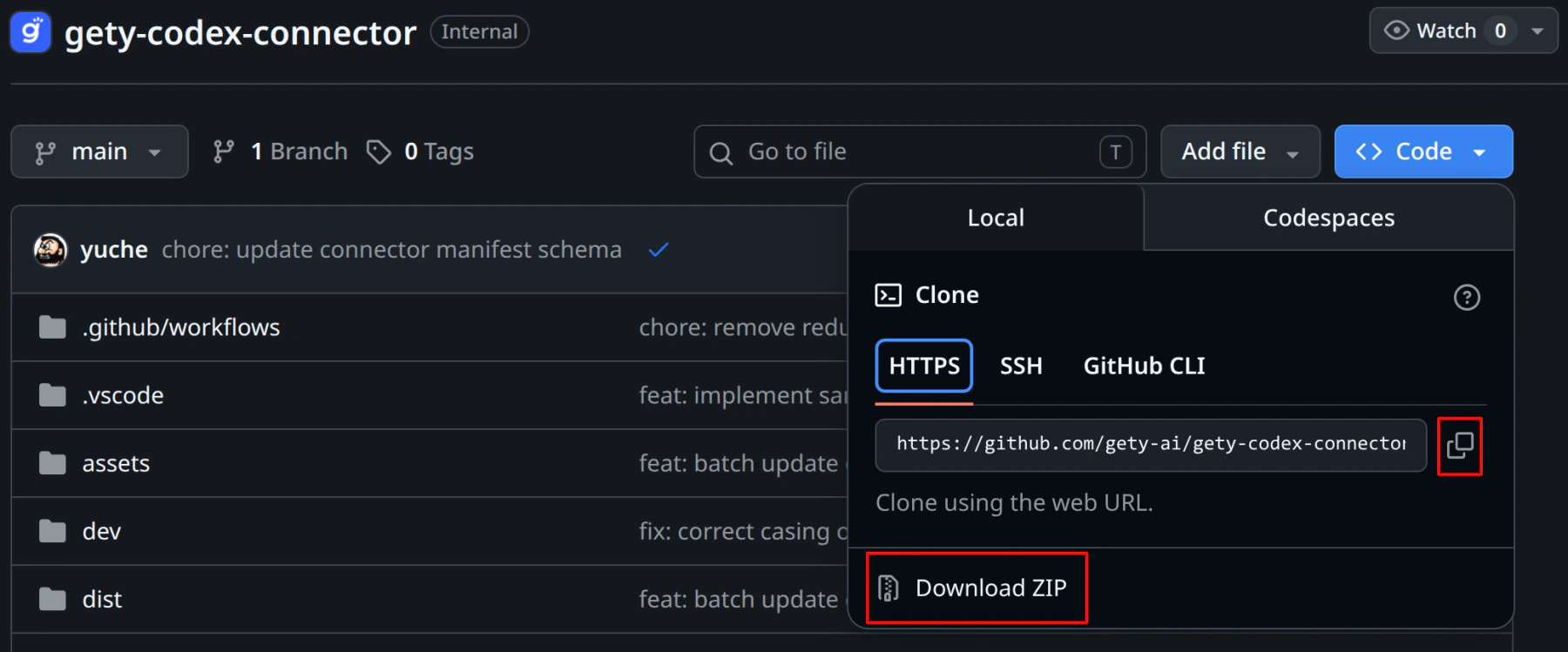
To download an official connector from GitHub, open the connector repository, click Code, and choose Download ZIP. Unzip the downloaded file before installing it in Gety.
Install a connector
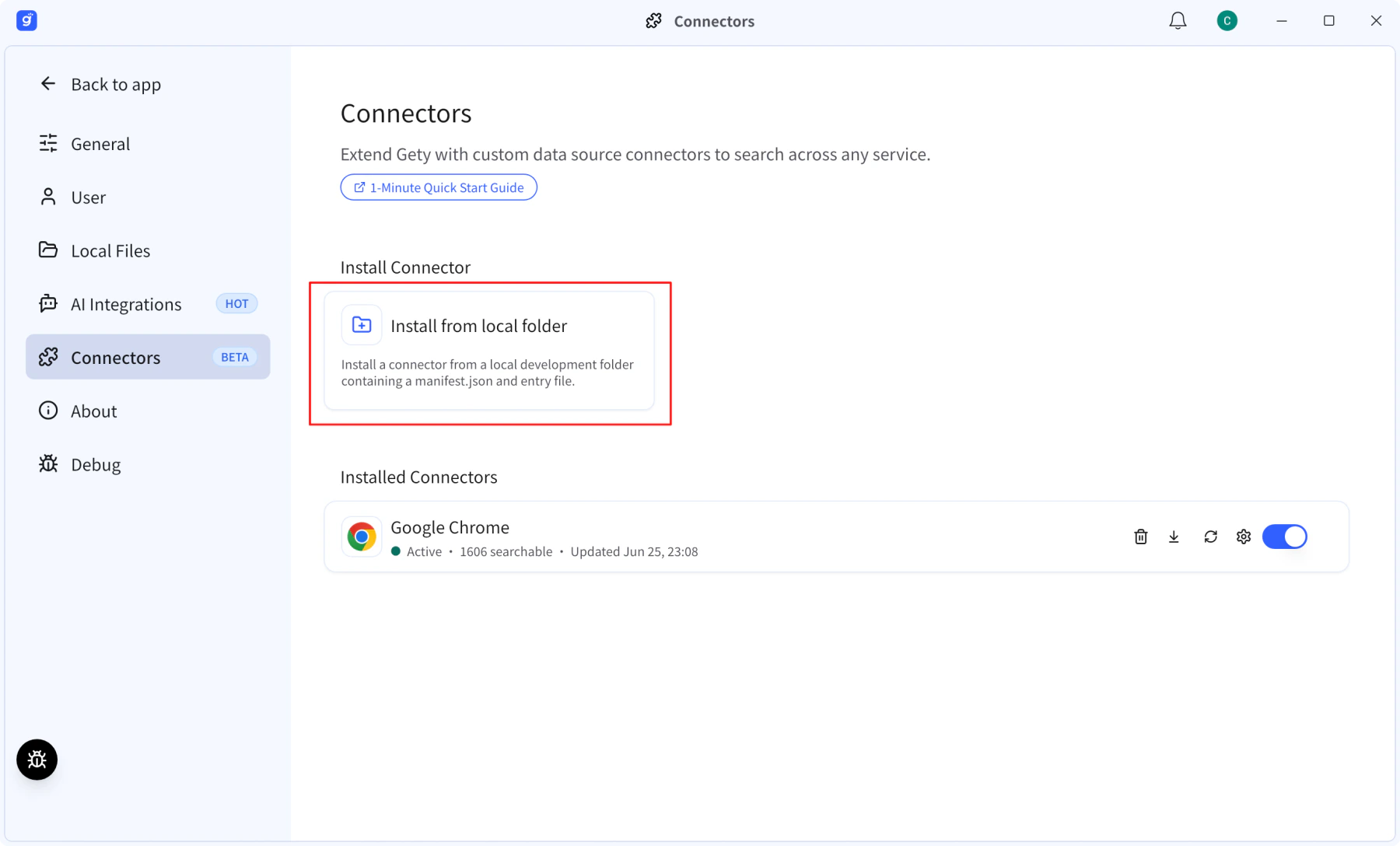
Connectors are installed from a local folder.
If you downloaded a connector as a ZIP file, unzip it first. Then install the extracted connector folder.
- Open Gety → Settings → Connectors
- Click Install connector
- Select the connector folder
- Review the name, version, and description shown by Gety
- Fill in any required configuration fields shown in the install dialog
- Confirm the install
Select the folder that contains the connector's manifest.json.
Use Install from local folder on the Connectors page to pick the extracted connector folder.
Configure a connector
Connectors with required configuration fields must be configured before installation completes, such as an API key, a server URL, or a folder path. After installation, you can adjust a connector's configuration at any time.
To change configuration after installation:
- Open the connector in Gety → Settings → Connectors
- Edit the configuration fields
- Save the configuration
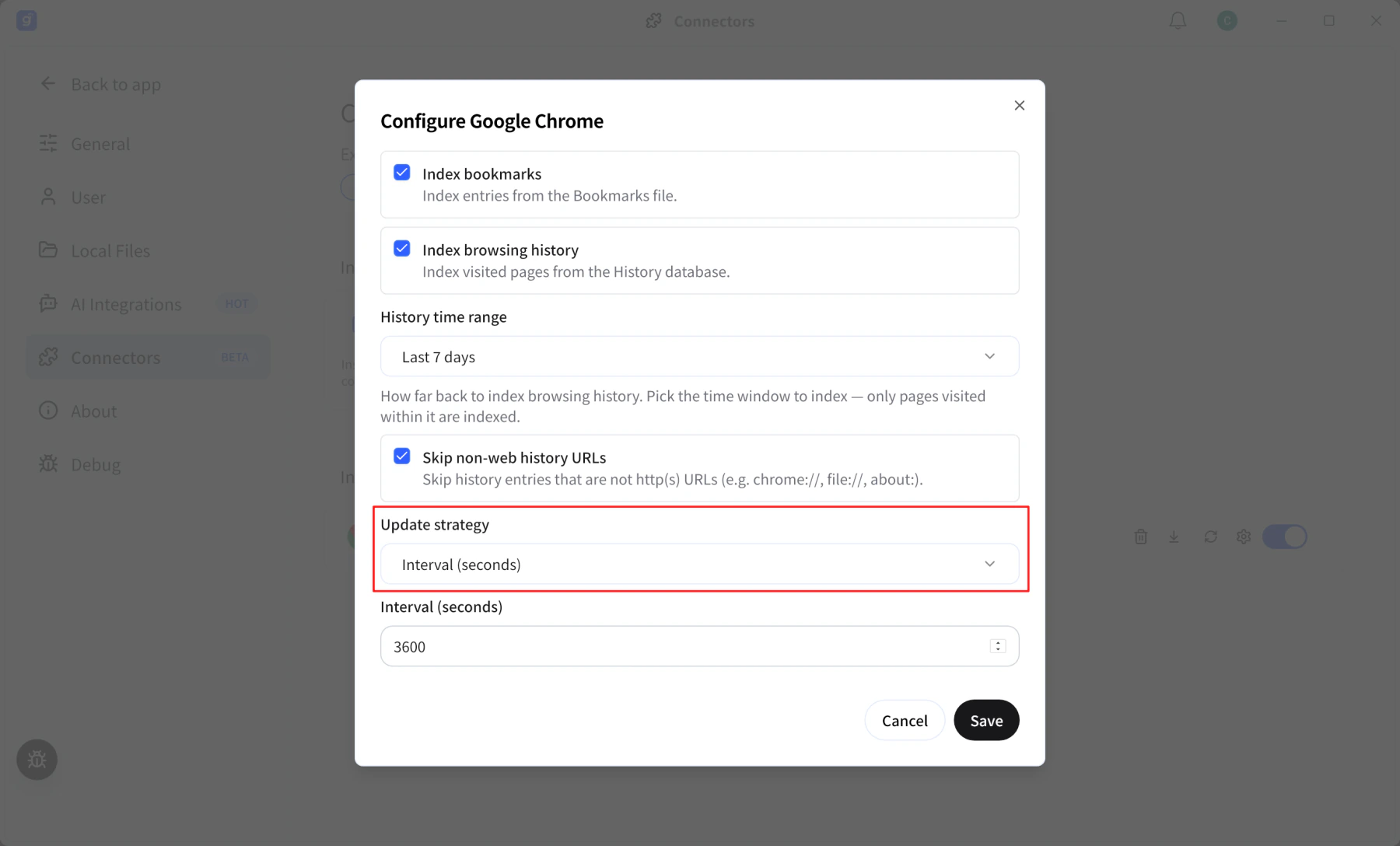
Choose an update strategy
Each connector declares its update strategy. After installation, you can adjust the schedule at any time in Gety.
| Strategy | Behavior |
|---|---|
| Manual | Gety never polls automatically. Click Update now when you want to run a poll. |
| Interval | Gety polls after a fixed interval, such as every hour. |
| Daily | Gety polls once per day at a set local time. |
Use the connector configuration dialog to change the update strategy after installation.
Enable, disable, or remove a connector
- Disable a connector to stop scheduled polling without deleting its configuration.
- Enable it again to resume indexing.
- Remove it to uninstall the connector and remove its indexed documents from search.
Run an update or restart
- Update now runs a poll immediately. Use it when you want fresh results without waiting for the next scheduled poll.
- Restart stops the connector runtime and starts it again. Use it after updating the connector build, or when a connector appears stuck.
Troubleshooting
The connector won't install
Make sure you selected the connector root folder, which is the folder that contains manifest.json. If the manifest is invalid or the connector requires a newer Gety version, the install dialog shows the reason.
The connector has no results
- Confirm the connector is enabled.
- Check that all required configuration fields are filled in correctly, especially API keys.
- Click Update now, wait for the poll to finish, and search again.
Results are out of date
Click Update now to run a poll. If the connector still appears stuck, click Restart.
The connector indexes different content than expected
If the indexed content doesn't match what you expect, report an issue to the connector author. Include the connector version, configuration that is safe to share, what you expected, and an example of the unexpected result.
Build your own connector
Need a source Gety doesn't cover yet? See Build a connector.