Work with AI
AI tools are powerful, but they can't see your local files. Your documents are scattered across project folders, Desktop, Downloads, and cloud drives — and every AI conversation starts from zero.
Gety changes this. Connect once, and AI agents can search all your indexed files, pull the details they need, and produce finished deliverables — presentations, reports, briefings — grounded in your real data.
See it in action
Tell Claude Cowork to prepare a launch review presentation. It plans the task, calls Gety to search your files, retrieves risk assessments, budget figures, and customer status updates, then assembles a polished slide deck — all without you locating or uploading a single file.
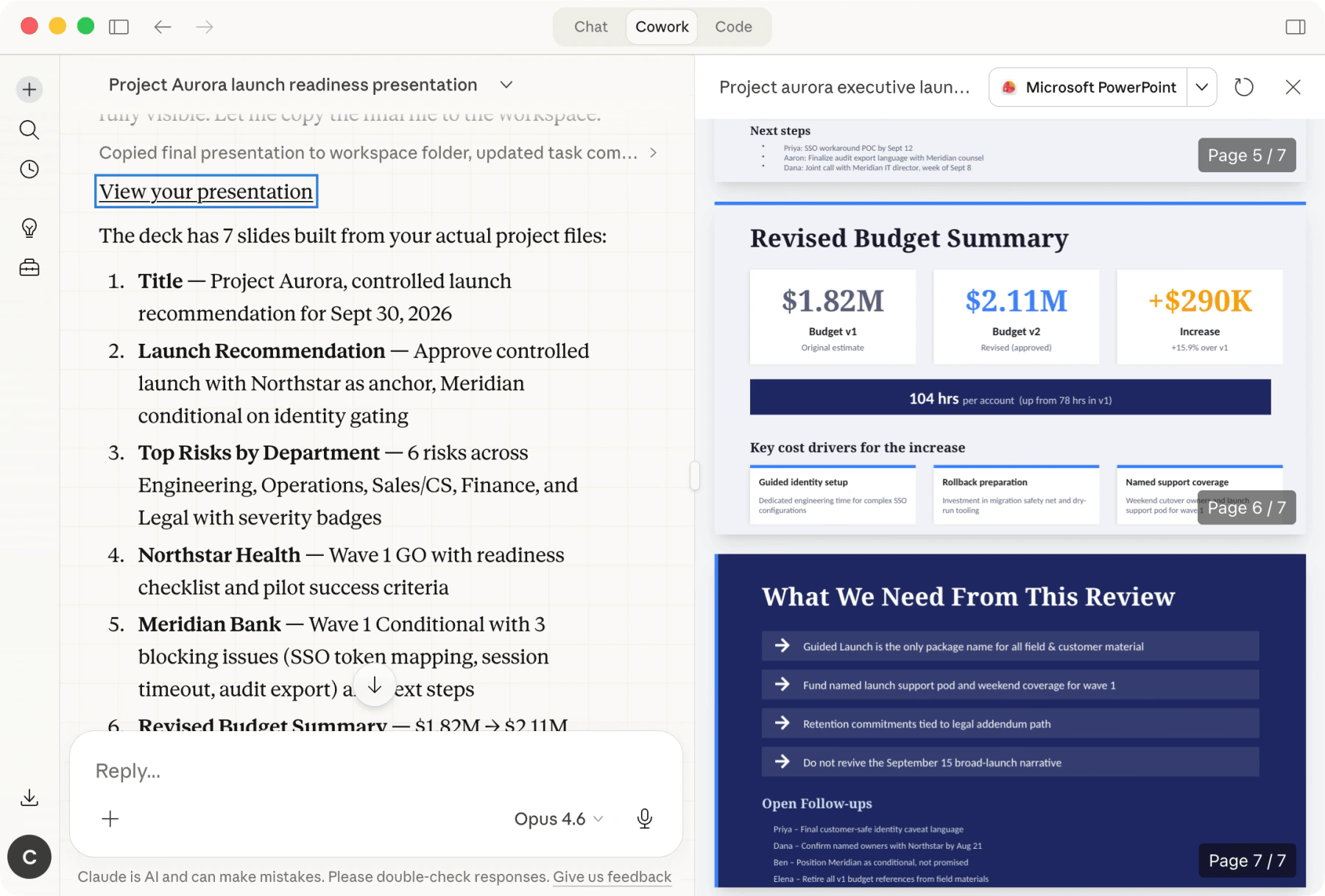 Claude Cowork + Gety: a 7-slide presentation with real budget data and action items
Notice the sources — they come from across the computer, not a single folder. A risk register in a project folder, an approval memo on the Desktop, a recommendation shared via OneDrive. Gety searched everywhere your files live, and the agent pulled them together into one coherent deliverable.
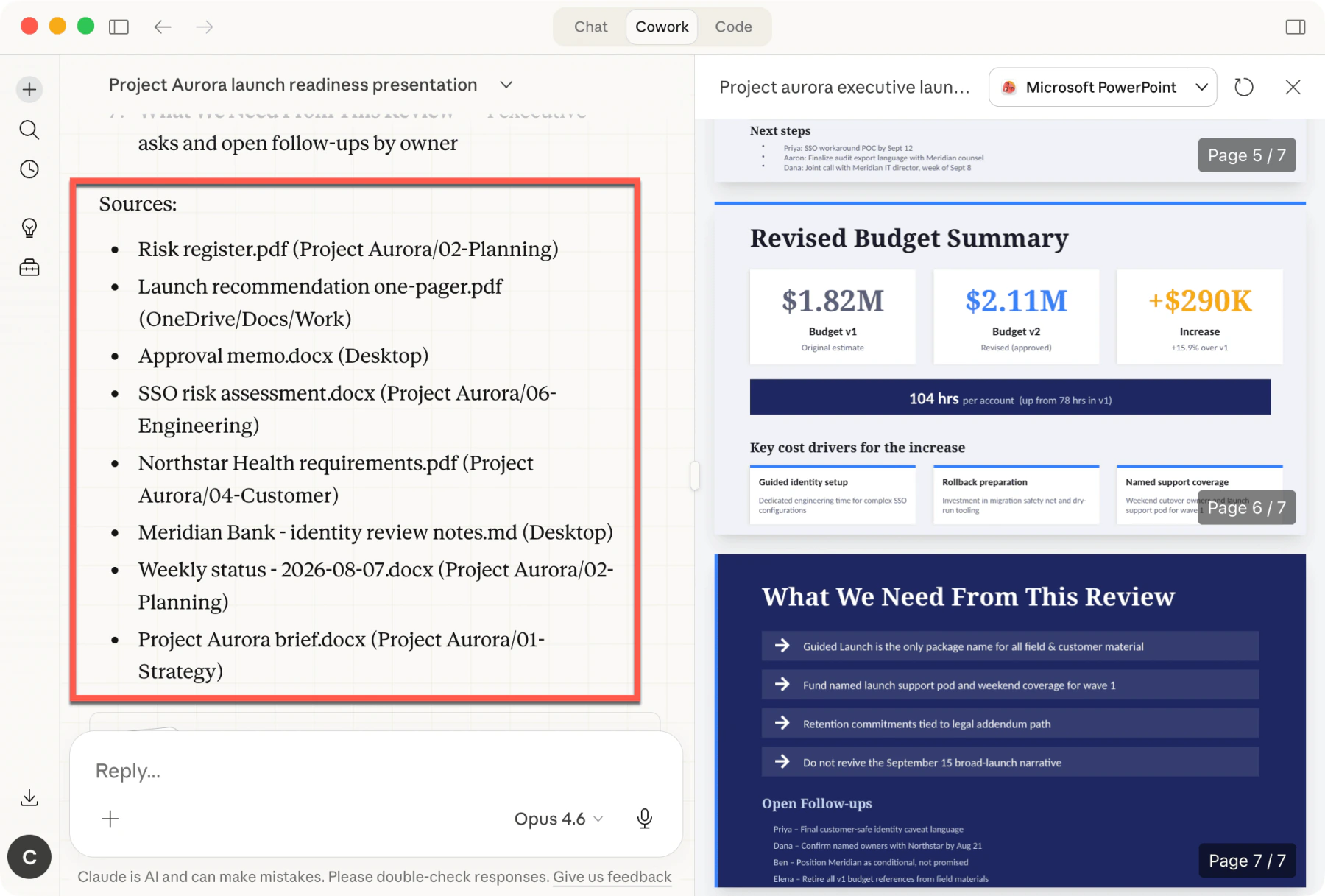 Sources pulled from Desktop, OneDrive, and project folders — searched and assembled automatically
This is the real value of connecting Gety to AI agents: you describe the outcome, and the agent handles the rest — finding the right files across your entire computer, extracting the details, and delivering finished work.
Get started
Open Gety → Settings → AI Integrations, click the tool you want to connect under AI Apps, and you're done.
| App | Type |
|---|---|
| Claude & Claude Cowork | Desktop app |
| Claude Code | Terminal (CLI) |
| Codex | Terminal (CLI) |
| Cursor | Code editor |
| VS Code | Code editor |
| Cherry Studio | Desktop app |
| WorkBuddy | Desktop app |
| Kimi Code | Terminal (CLI) |
| DeepSeek Harness | Terminal (CLI) |
| LM Studio | Local model runner |
Don't see your tool? Any MCP-compatible app can connect to Gety. See Manual MCP Setup.
Other ways to connect
| Method | Best for |
|---|---|
| API | Building custom integrations or searching files programmatically |
| CLI | Command-line workflows and shell scripts |
| LAN Access | Connecting AI tools on another device on your network |
Privacy and control
Gety runs 100% on your computer. Your files are never uploaded anywhere.
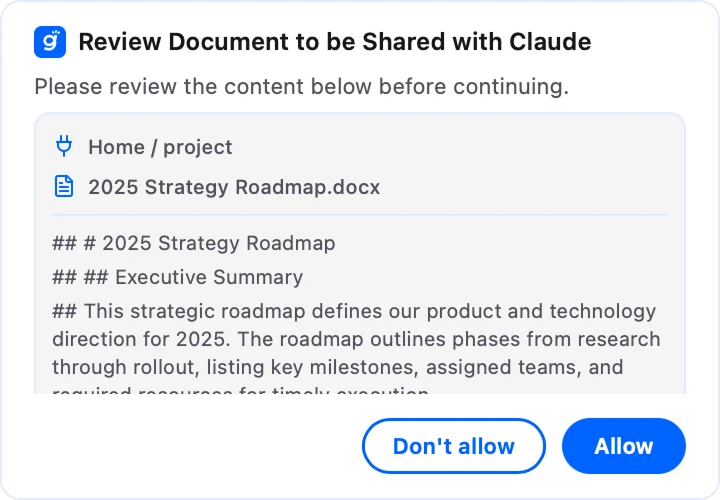
When an AI tool requests content, you decide what happens:
- Ask every time — a system notification appears for each request. Click Allow or Don't allow to decide whether to share.
- Always Allow — content is shared automatically for an uninterrupted workflow.
In Ask every time mode, Gety shows a system notification each time an AI tool wants to read your files. Click Allow to share the snippets, or Don't allow to block the request:
Change this anytime in Gety → Settings → AI Integrations. For complete offline operation, pair Gety with a local AI model — your data never leaves your computer.