CLI
Gety includes a command-line tool for searching files, opening the search interface, retrieving document content, and managing connectors directly from your terminal.
Set up
- Open Gety → Settings → AI Integrations and click CLI Commands under More Options
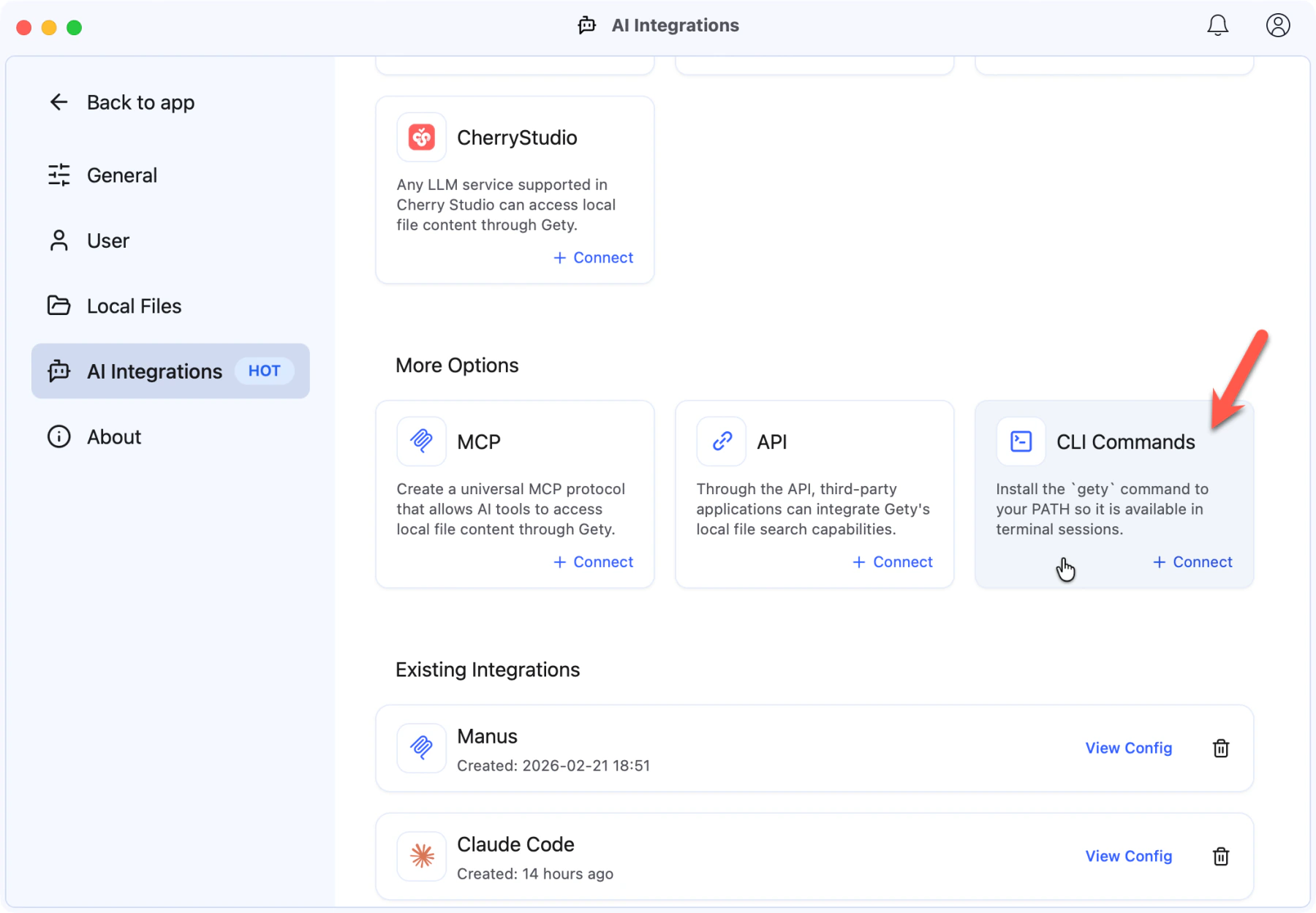 Gety → Settings → AI Integrations: click CLI Commands under More Options
- Gety installs the
getycommand to your PATH and shows the CLI documentation. You can browse the commands or click Copy All to copy the full documentation.
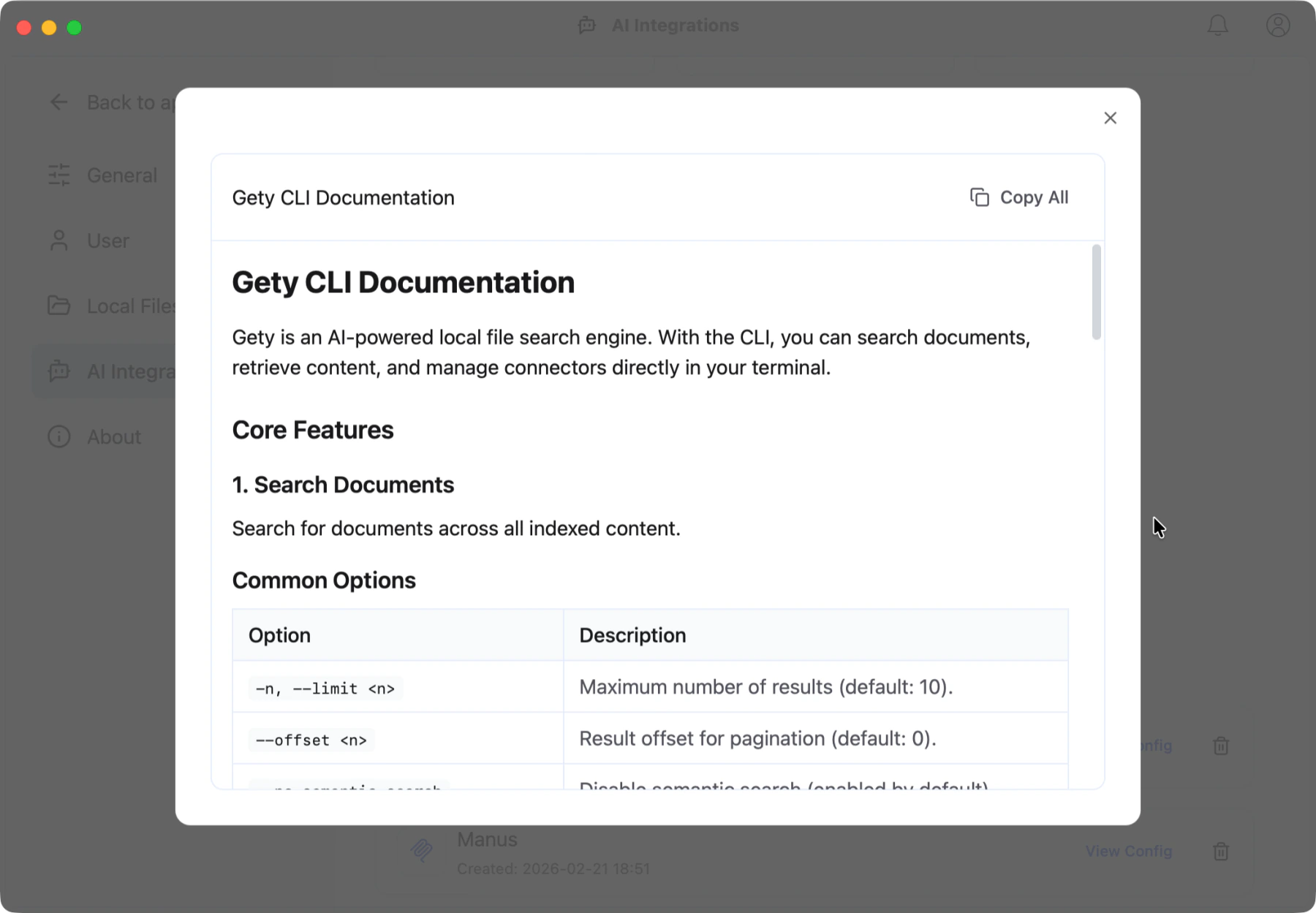 Your CLI documentation — click Copy All to copy everything
After enabling CLI Commands, you must close and reopen your terminal (or start a new terminal session) for the PATH change to take effect. The gety command will not be recognized until you do this.
Search
gety search "contract renewal terms"
Results show the document title, matched snippet, and file path.
To open the same search in the Gety app instead of printing results in the terminal:
gety search "contract renewal terms" --ui
Options
gety search "budget report" --limit 5              # Limit results
gety search "meeting notes" --ext pdf --ext docx    # Filter by type
gety search "Q1 revenue" --json                     # JSON output
gety search "design specs" --no-semantic-search      # Keywords only
gety search "合同" --match-scope content             # Search content only
gety search "invoice" --folder ~/Documents/Finance   # Search within a folder
gety search "proposal" --ui --folder ~/Projects       # Open filtered results in Gety
| Flag | Description |
|---|---|
-n, --limit <n> | Max results (default: 10) |
--offset <n> | Result offset for pagination (default: 0) |
-c, --connector <name> | Filter by connector name. Repeat the flag or separate values with commas. |
-e, --ext <ext> | Filter by file extension. Repeat the flag or separate values with commas. For example, use pdf, .pdf, docx, or any other indexed file extension. |
--match-scope <scope> | title, content, or semantic. Repeat the flag or separate values with commas. |
--sort-by <field> | default or update_time |
--sort-order <order> | ascending or descending |
--update-time-from <iso8601> | Filter by modification time, such as 2026-07-01T00:00:00Z |
--update-time-to <iso8601> | Filter by modification time, such as 2026-07-31T23:59:59Z |
--no-semantic-search | Disable semantic search |
--folder <path> | Search only within a folder. The folder must already be under an indexed connector. Repeatable. |
--ui | Open the Gety search UI instead of printing results. You can use it with just a query, or with --folder to open a folder-scoped search. |
--json | Output as JSON. This is a global option and works with all CLI commands. |
--ui is for opening Gety interactively. In UI mode, Gety only applies the query and --folder. If you combine --ui with filters such as --connector, --limit, --ext, or --match-scope, Gety ignores those filters and prints a warning.
Fetch a document
gety doc <connector_id> <doc_id>
gety doc <connector_id> <doc_id> --page-start 1 --page-end 3
Retrieves the full content of a document. The connector_id and doc_id are returned in search results.
| Flag | Description |
|---|---|
--page-start <n> | First page to return, using 1-based page numbers |
--page-end <n> | Last page to return, using 1-based page numbers |
You can provide only --page-start or only --page-end for an open-ended range. Page filters work only for document types that support page-based retrieval.
Manage connectors
gety connector list                        # List all indexed folders
gety connector add ~/Documents             # Add a folder to index
gety connector add ~/Projects --name work  # Add with custom name
gety connector add C:\                     # On Windows, add an NTFS volume root
gety connector remove <connector_id>       # Remove a folder
Connector commands manage file-system connectors. connector add requires a directory path. On Windows, adding a volume root such as C:\ creates an NTFS connector when the volume is available; other directories create folder connectors. Use --name to set the display name shown in Gety.
Output JSON
Add --json to any command when you want structured output:
gety --json search "client proposal"
gety connector list --json
gety doc <connector_id> <doc_id> --json
Successful JSON is written to stdout. Structured error details are written to stderr.
Use with AI agents
The CLI is useful for AI agents that can run shell commands (e.g. Claude Code, Codex). The agent can call gety search to find relevant files during a task.
Example prompt for an agent:
"Search my local files using
gety searchfor any documents related to the client proposal, then summarize the key points."
For JSON output that's easier for agents to parse:
gety search "client proposal" --json
Just like with the API, you can copy the full CLI documentation and paste it into your agent's conversation. The agent will know how to call gety commands on your behalf.
Exit codes
| Code | Meaning |
|---|---|
0 | Success |
1 | General error |
2 | Invalid arguments |
69 | Gety is not running |
75 | Request timed out |
76 | Failed to connect to Gety IPC |
77 | Monthly quota exceeded; see FAQ: Free plan and Pro |
If you get exit code 69, make sure the Gety desktop app is running.