Manual MCP Setup
If your tool has a dedicated App Guide (Claude, Claude Code, Codex, etc.), follow that instead — it will be faster.
This guide covers connecting any MCP-compatible AI tool to Gety.
Step 1: Create an MCP integration in Gety
- Open Gety → Settings → AI Integrations
- Under More Options, click MCP
- Enter a name for the tool you want to connect (e.g. "Gemini") and click Create
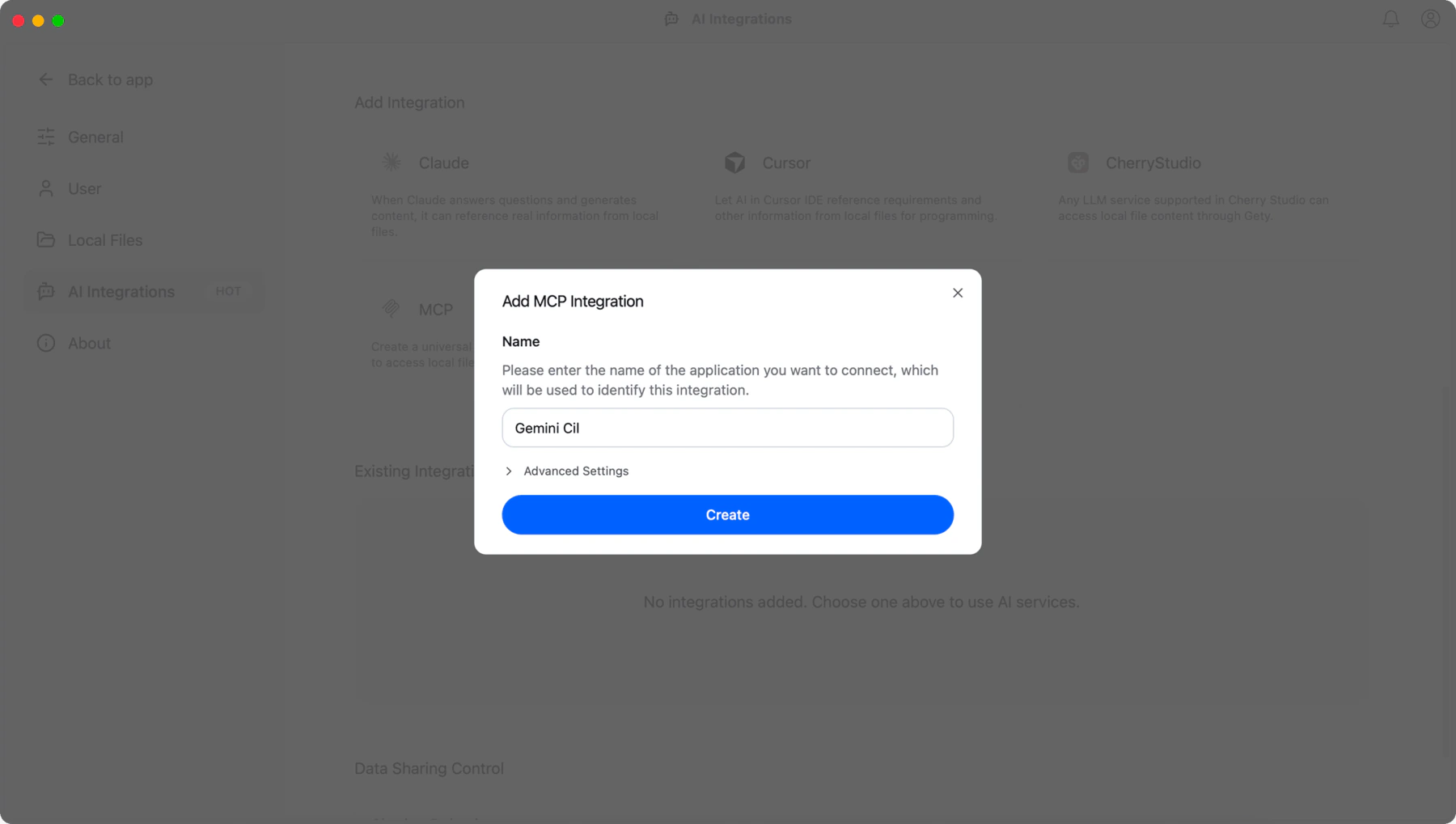 Gety: enter the name of your AI tool and click Create
Step 2: Copy the config to your AI tool
After creating the integration, click View Config next to it. Gety shows the full MCP configuration.
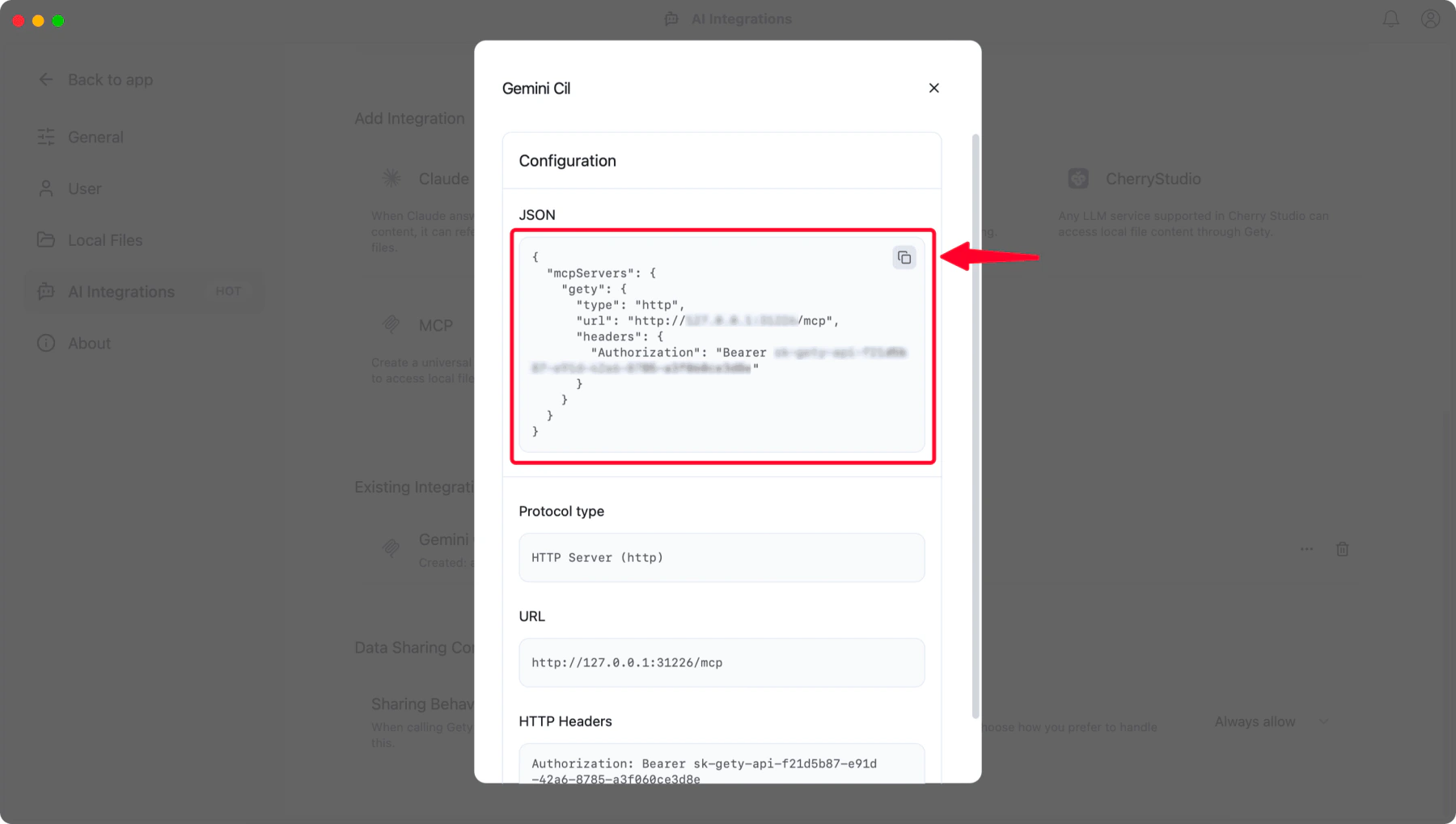 Gety: click the copy button to copy the JSON config
Option A: Paste the JSON to your AI tool
The fastest way — copy the entire JSON block and paste it directly into your AI tool's MCP configuration file. Most tools accept this format. The example below uses Gety's default local URL; use the exact URL shown in your Gety config:
{
  "mcpServers": {
    "gety": {
      "type": "http",
      "url": "http://127.0.0.1:31226/mcp",
      "headers": {
        "Authorization": "Bearer sk-gety-api-xxxxx"
      }
    }
  }
}
Save the file and restart your AI tool.
Option B: Enter the URL and key manually
If your AI tool has a settings UI for MCP servers, enter these values:
| Field | Value |
|---|---|
| Type | Streamable HTTP (or http) |
| URL | The exact URL shown by Gety (default: http://127.0.0.1:31226/mcp) |
| Authorization header | Bearer sk-gety-api-xxxxx (from your config) |
Some AI tools have a chat interface that can configure MCP for you. Try pasting the JSON and asking: "This is my Gety MCP config. Please add it to your MCP settings."
Step 3: Verify the connection
Ask your AI tool:
Use Gety to search for [any topic you have files about] and summarize what you find.
If it returns results from your local files, the setup is complete.
Troubleshooting
Can't connect to Gety?
- Make sure Gety is running — check the system tray icon
- Check that indexing has started (it does not need to finish — partial results work)
AI tool doesn't seem to use Gety?
- Some tools require you to explicitly enable the MCP server in their settings after adding it
- Try mentioning "use Gety" in your prompt
Results seem incomplete?
- Gety may still be indexing. Check progress in Gety → Home (bottom right corner)
- Semantic search requires the embedding model (~100 MB download on first launch)
Data sharing settings
When an AI tool calls Gety, you can control what gets shared.
Go to Gety → Settings → AI Integrations → Data Sharing Control:
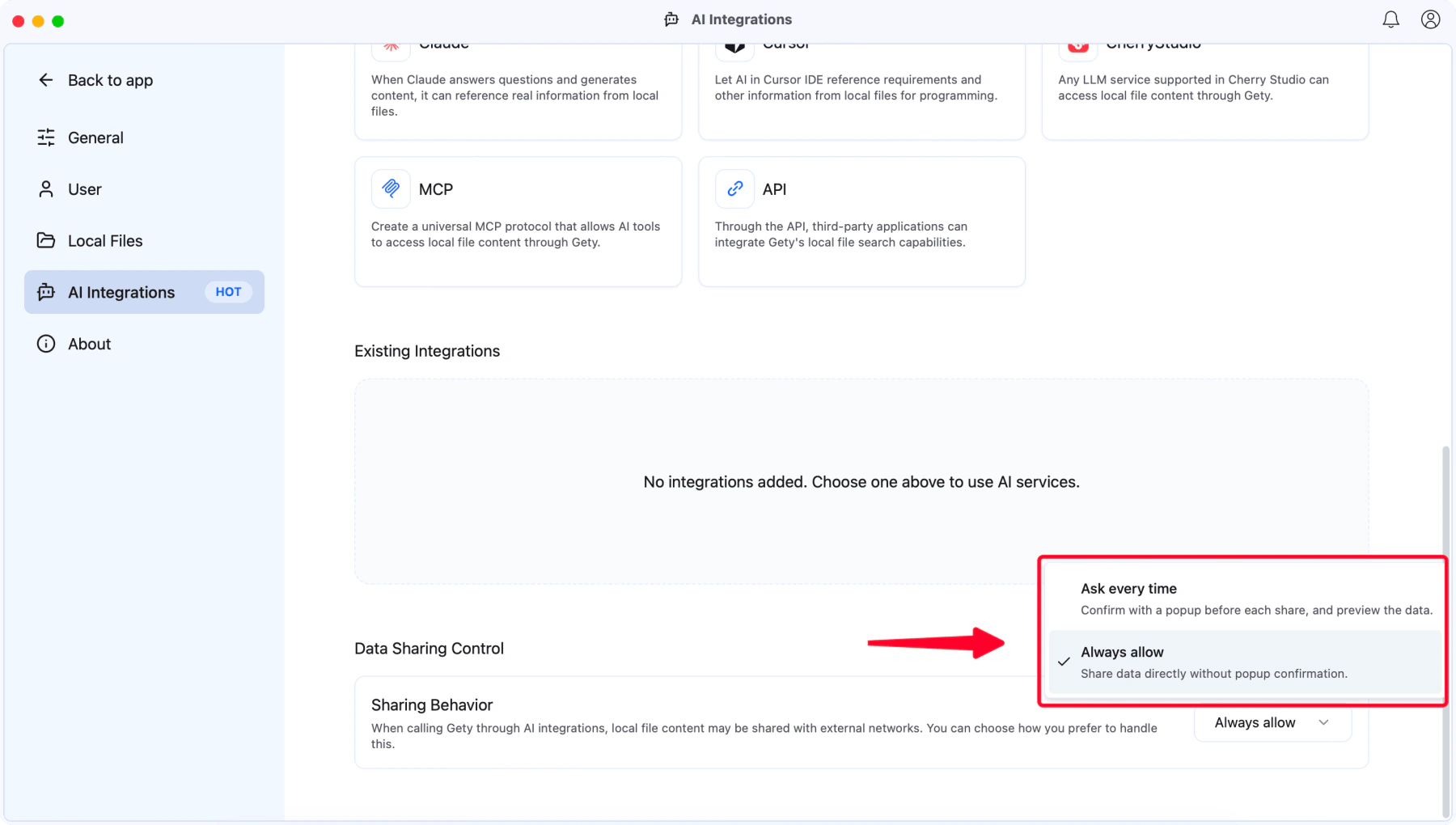 Gety: choose how data sharing is handled
-
Ask every time — A confirmation popup appears before each request. Click Allow to share the snippets, or Don't allow to block the request.
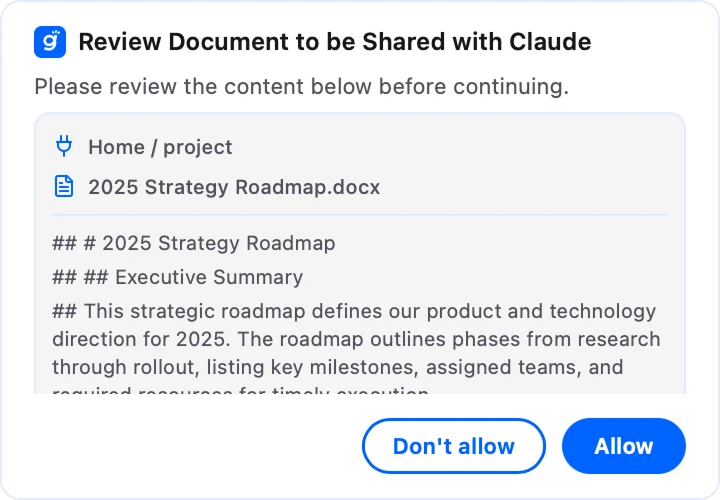
Gety: review the content before allowing access
-
Always allow — Content is sent directly without confirmation, for a faster workflow.
You can change this setting at any time.