Connect Gety to WorkBuddy
Connect Gety to WorkBuddy so it can find information across your indexed local files and turn that information into reports, comparisons, tables, and other deliverables.
Gety and WorkBuddy handle different parts of the task:
- Gety finds the source material. It searches the full content of files across every connector you choose to index, including scanned documents processed with OCR.
- WorkBuddy completes the work. It reviews the retrieved content, organizes the evidence, and creates the requested deliverable.
This is useful when the files you need are spread across several folders, or when you know the subject but not the file names.
Prerequisites
- Gety is installed and running with at least one folder indexed
- The WorkBuddy desktop app is installed and you are signed in. Download WorkBuddy
- Gety and WorkBuddy are running on the same computer
WorkBuddy connects to Gety through the Model Context Protocol (MCP). Gety's MCP server runs locally, so Gety must remain open while WorkBuddy uses it.
Connect WorkBuddy
Step 1: Add WorkBuddy in Gety
Open Gety → Settings → AI Integrations. Under AI Apps, click WorkBuddy. Gety creates the integration automatically.
The first time you connect an AI app on this computer, Gety shows We care about your privacy. Choose how Gety handles future access requests, then click Continue. If you have made this choice before, the dialog does not appear.
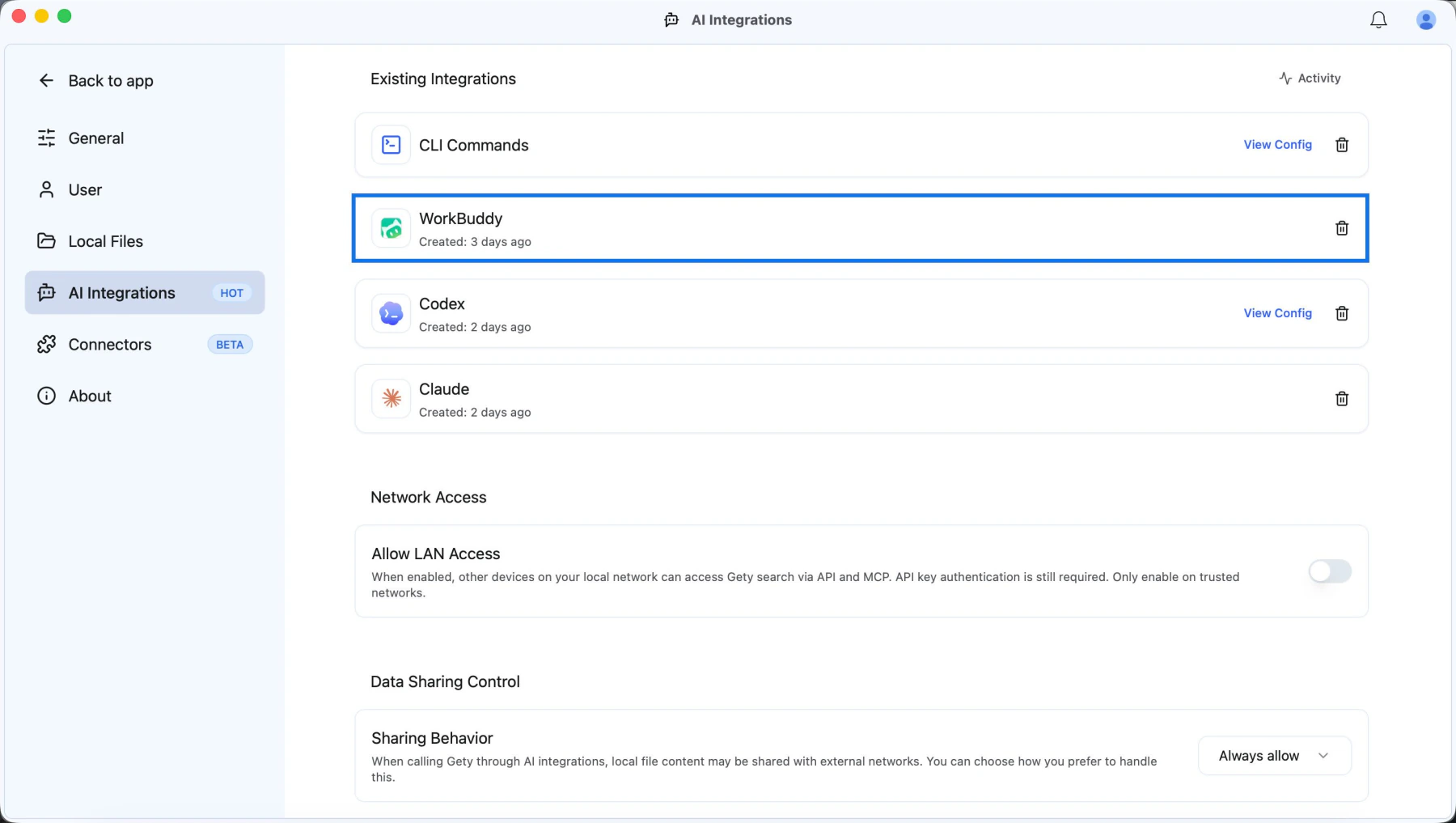
WorkBuddy appears under Existing Integrations after Gety creates the connection.
Step 2: Confirm the connection in WorkBuddy
Open WorkBuddy, point to Experts · Skills · Connectors, then select Connectors from the menu. On the Connectors page, click Custom Connector in the upper-right corner. This opens MCP Server Management. Gety appears under My MCP, not in the connector marketplace search results.
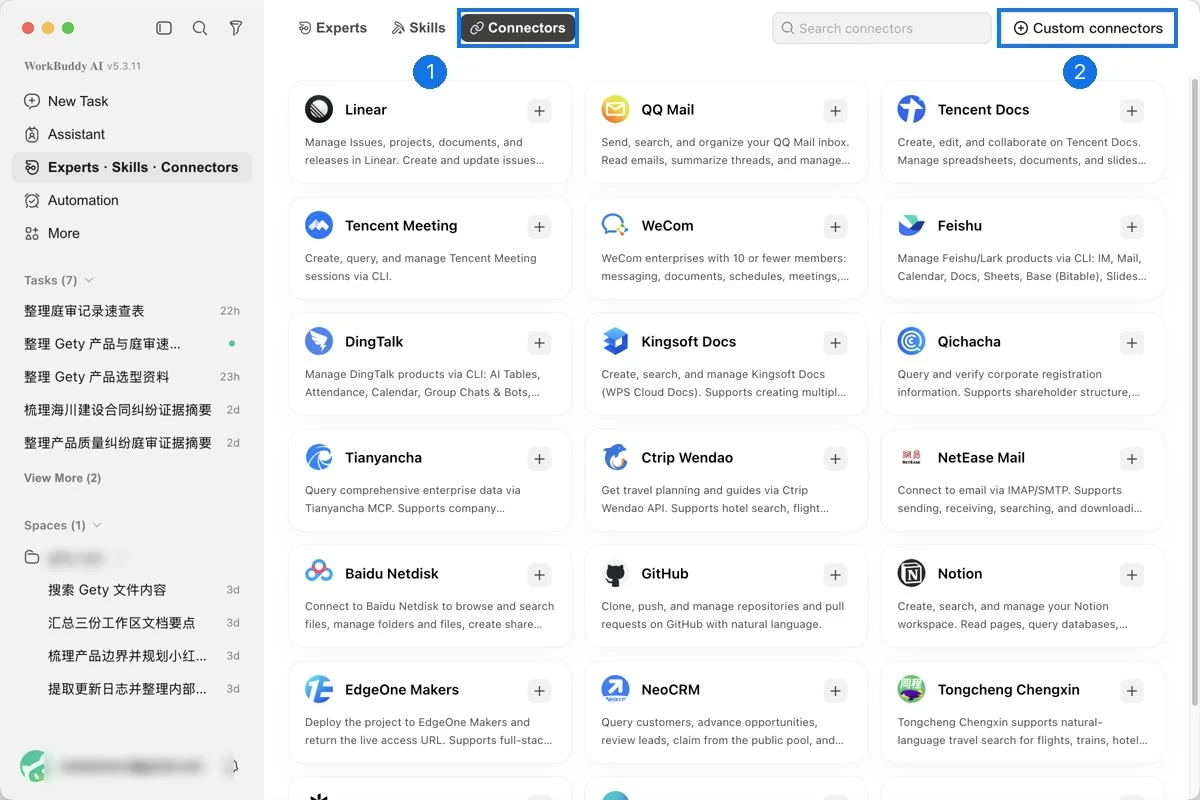
Open Connectors, then select Custom connectors to manage MCP servers.
The first time WorkBuddy connects to Gety on this computer, gety shows a gray status indicator, 0 enabled · 1 failed, and the notice This MCP server requires your trust before first connection. Click Trust. If you have trusted Gety on this computer before, the notice does not appear.
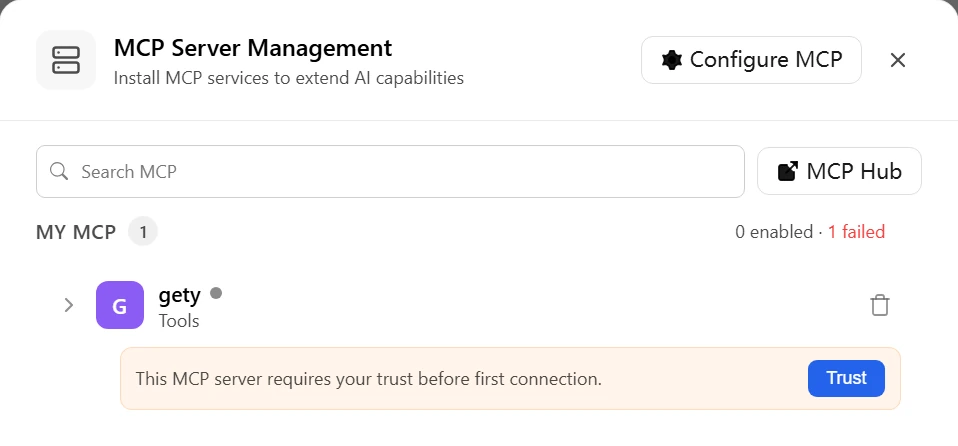
Click Trust the first time WorkBuddy connects to Gety.
Find gety and confirm that it has a green status indicator, the switch is on, and 3/3 tools enabled appears below its name.
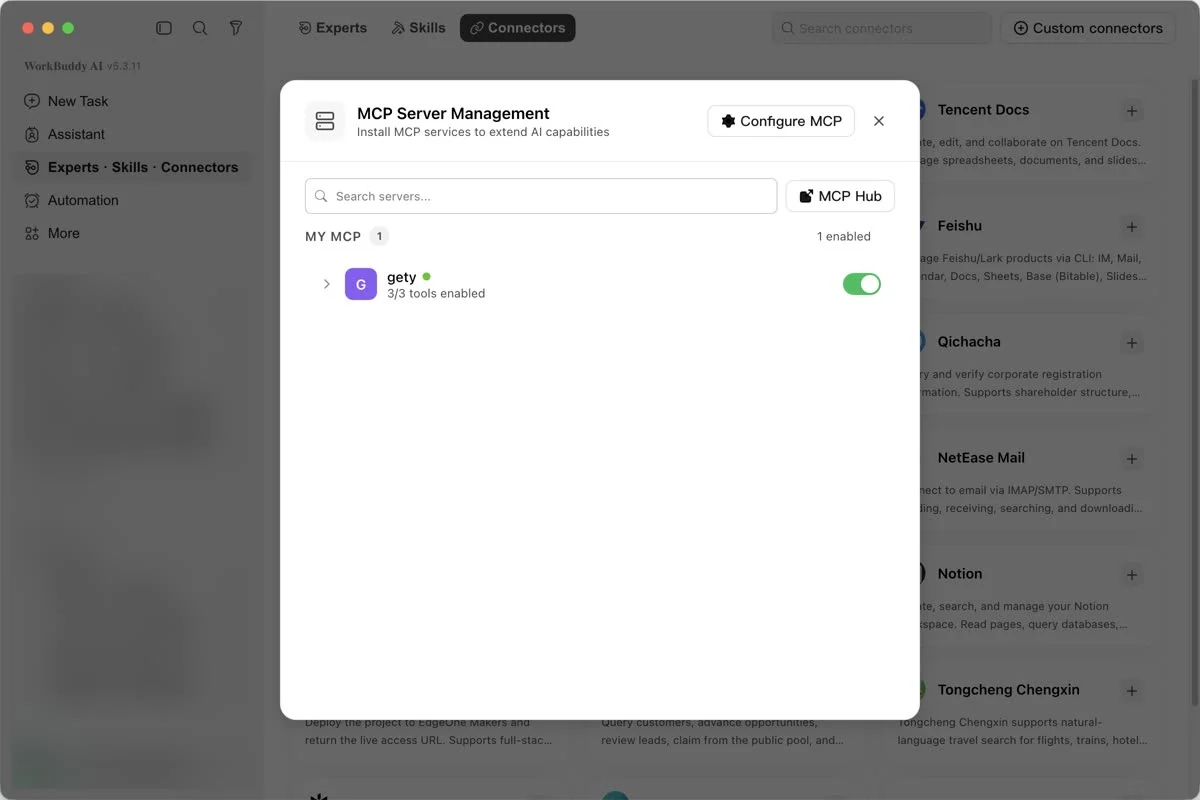
Gety is ready when it shows a green status indicator, an enabled switch, and 3/3 tools enabled.
The three tools let WorkBuddy list your Gety connectors, search indexed content, and retrieve a document when it needs more context.
Use Gety in WorkBuddy
Start a new WorkBuddy task with a simple question you already know the answer to:
Use Gety to search my local files for the definition of Project Aurora. List the source files you used, then summarize the definition in no more than 100 words.
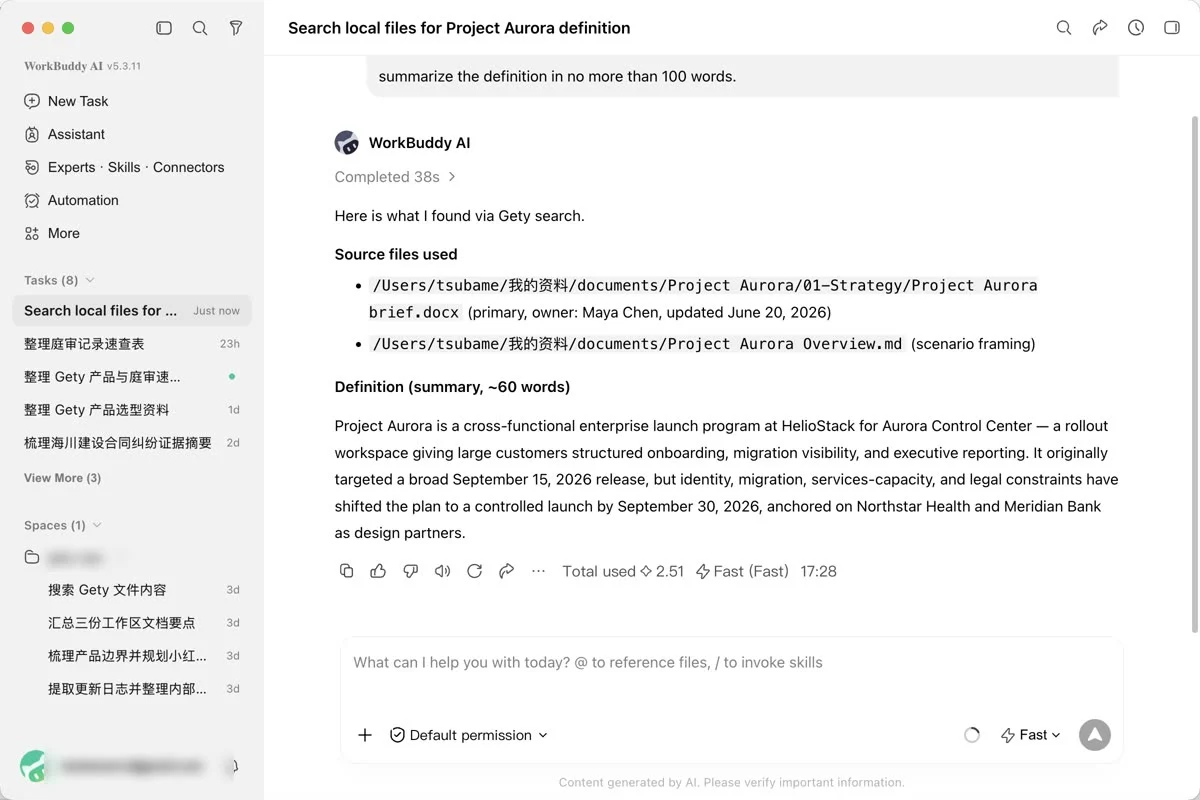
Use Gety in a real task and check the source files behind the answer.
To check that WorkBuddy called Gety, click Completed above the answer to expand the task process. WorkBuddy called Gety when the process lists a step named Search, GetDoc, or ListConnectors. These are Gety's three tools. WorkBuddy shows them by these names and does not show the name Gety. When WorkBuddy reads a file on its own, the step starts with Read and the file name instead.

WorkBuddy called Gety when the task process lists Search, GetDoc, or ListConnectors.
Check at least one cited file to make sure the result reflects the source.
If WorkBuddy answers from general knowledge or the task process has none of these steps, include Use Gety and search my local files explicitly in the prompt.
You control what WorkBuddy receives. Choose Ask every time or Always allow in Gety → Settings → AI Integrations → Data Sharing Control. See Privacy and control for details.
Write better prompts
An effective prompt tells WorkBuddy four things: which tool to use, what you need, the desired output, and how to handle sources. You do not need to list every possible search term. For complex tasks, ask WorkBuddy to search again with different wording and retrieve the full text of the most relevant files.
Use this reusable structure:
Use Gety to search my local files for information related to [topic or task].
If needed, try different search terms and retrieve the full text of the most relevant files.

Create [deliverable and format] for [audience or purpose].
Include [required sections, fields, comparisons, or calculations].

Cite the source file name for important information and separate file content from your analysis.
If sources conflict, present the conflicting information separately.
If the files do not contain an answer, say what is missing instead of guessing.
Here are three examples:
Compare contract terms
Use Gety to find the current master agreement, amendments, and renewal notices for Northstar Health. Create a table comparing term, renewal, termination, liability cap, payment terms, and data-processing obligations. For every cell, cite the source file name and clause or page number when available. Flag conflicts between documents and do not decide which version controls.
Prepare a project status briefing
Use Gety to search my local files for the latest Project Aurora risk register, budget approval, customer-readiness updates, and launch recommendation. Create a one-page executive briefing with the current recommendation, top five risks, budget variance, pending decisions, and owners. Cite each source and label information older than 30 days.
Review research across papers
Use Gety to find papers in my indexed research folders about retrieval-augmented generation evaluation. Create an evidence matrix with research question, dataset, method, key result, limitation, and source file. Separate reported findings from your interpretation, and list questions the papers do not answer.
Troubleshooting
WorkBuddy does not call Gety
- Start the prompt with Use Gety to search my local files.
- Confirm that
getyis enabled in WorkBuddy and shows all three tools. - Start a new task after enabling the connector so WorkBuddy reloads the available tools.
- If you are not sure whether WorkBuddy called Gety, open Gety → Settings → AI Integrations and click Activity. Every request from WorkBuddy is listed there with the words it searched for.
WorkBuddy calls Gety but gets nothing back
- Make sure Gety is open. WorkBuddy can only reach Gety while it is running.
- If you chose Ask every time, look for a sharing request from Gety that is waiting for your answer. If none appears, see restore sharing confirmations.
- Search for the same words in Gety itself. If Gety cannot find the file either, see Why can't I find a file or folder in search or in the index?
WorkBuddy's answer is missing details from a file
If the answer is missing details from a file, WorkBuddy may have used only a search snippet without reviewing the full source document. Ask WorkBuddy to use Gety to retrieve the full source document and review it.
For example:
Use Gety to open the most relevant source documents, verify the dates and amounts against the full text, and revise the report with citations that include the source file names.
Results contain unsupported claims
If WorkBuddy's answer includes information that does not appear in your files, it may have added its own assumptions. Ask WorkBuddy to cite the source file, distinguish information from the file from its own analysis, and clearly identify anything it cannot confirm from your files.
For example:
Cite the source file name for important information and separate content from my files from your analysis. If something cannot be confirmed from my files, say so instead of making an assumption.