Connect Gety to Claude & Claude Cowork
Connect Gety to the Claude desktop app, and Claude can work with all your local files — ask questions in Chat, or use Claude Cowork to create finished presentations, reports, and spreadsheets from your documents.
The Claude desktop app has two modes you can switch between using the tabs at the top: Chat and Claude Cowork. The setup below connects Gety to both at once. This guide focuses on Claude Cowork, but you can also use Gety in any Chat conversation to ask Claude questions about your local files.
Prerequisites
- Gety is installed and running with at least one folder indexed
- The Claude desktop app is installed on your computer
Set up
Quit the Claude desktop app completely before proceeding — minimizing to the dock is not enough.
- Quit the Claude desktop app if it is running
- Open Gety → Settings → AI Integrations and click Claude under AI Apps
- Launch the Claude desktop app
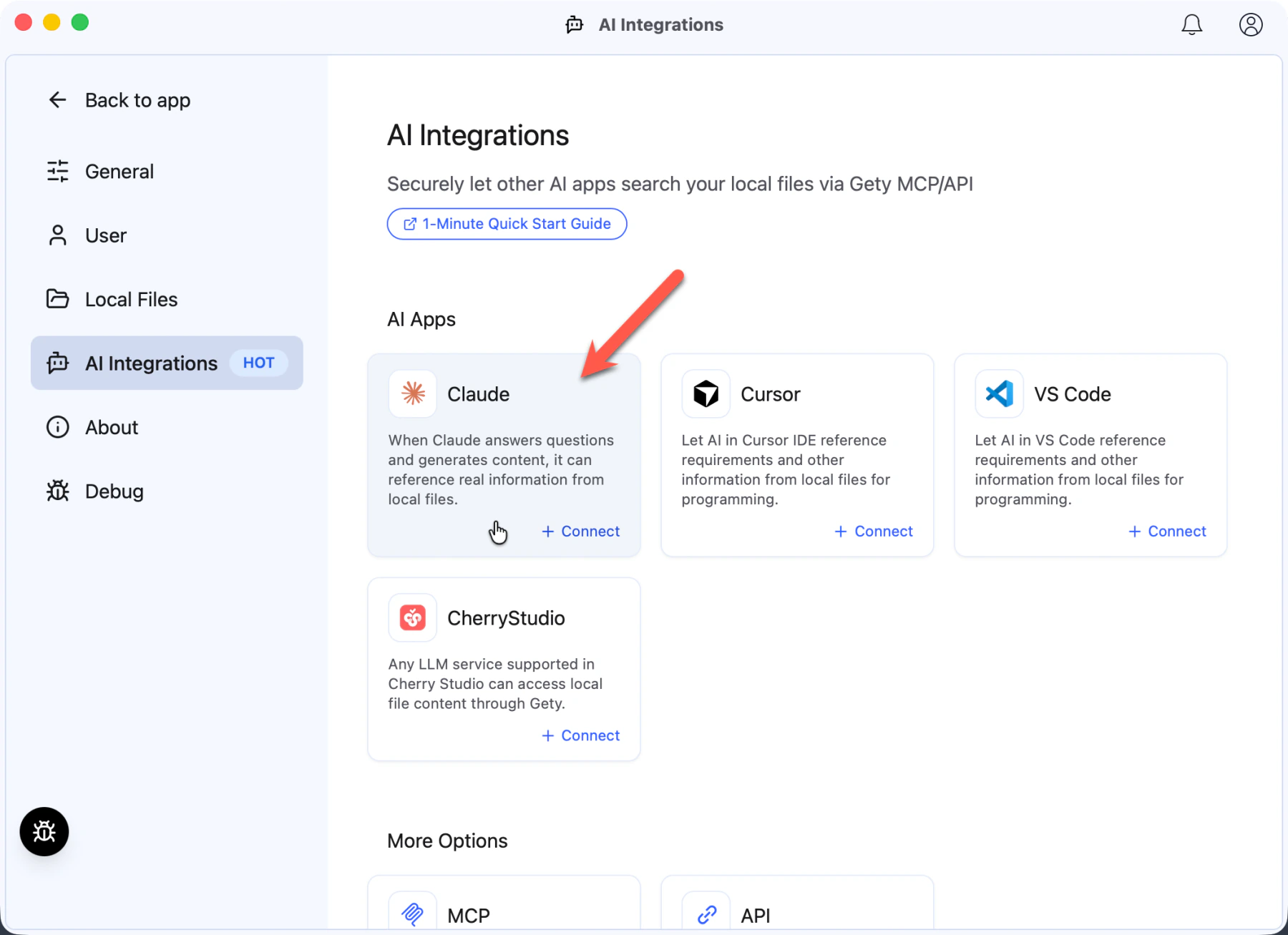 Gety → Settings → AI Integrations: click Claude under AI Apps
That's it — Gety handles the connection automatically.
Create deliverables with Claude Cowork
Claude Cowork lets you describe an outcome, step away, and come back to finished work. Combined with Gety, Claude Cowork can pull context from files scattered across your computer — project folders, Desktop, Downloads, cloud drives — and turn them into a polished deliverable.
Switch to the Cowork tab in Claude, grant access to your working folder, and try a prompt like:
I need to present Project Aurora's launch readiness at next week's executive review. Use Gety to search my files for the latest risk assessments, customer status updates, and budget figures, then create a presentation covering: launch recommendation, top risks by department, Northstar Health and Meridian Bank readiness, and revised budget summary.
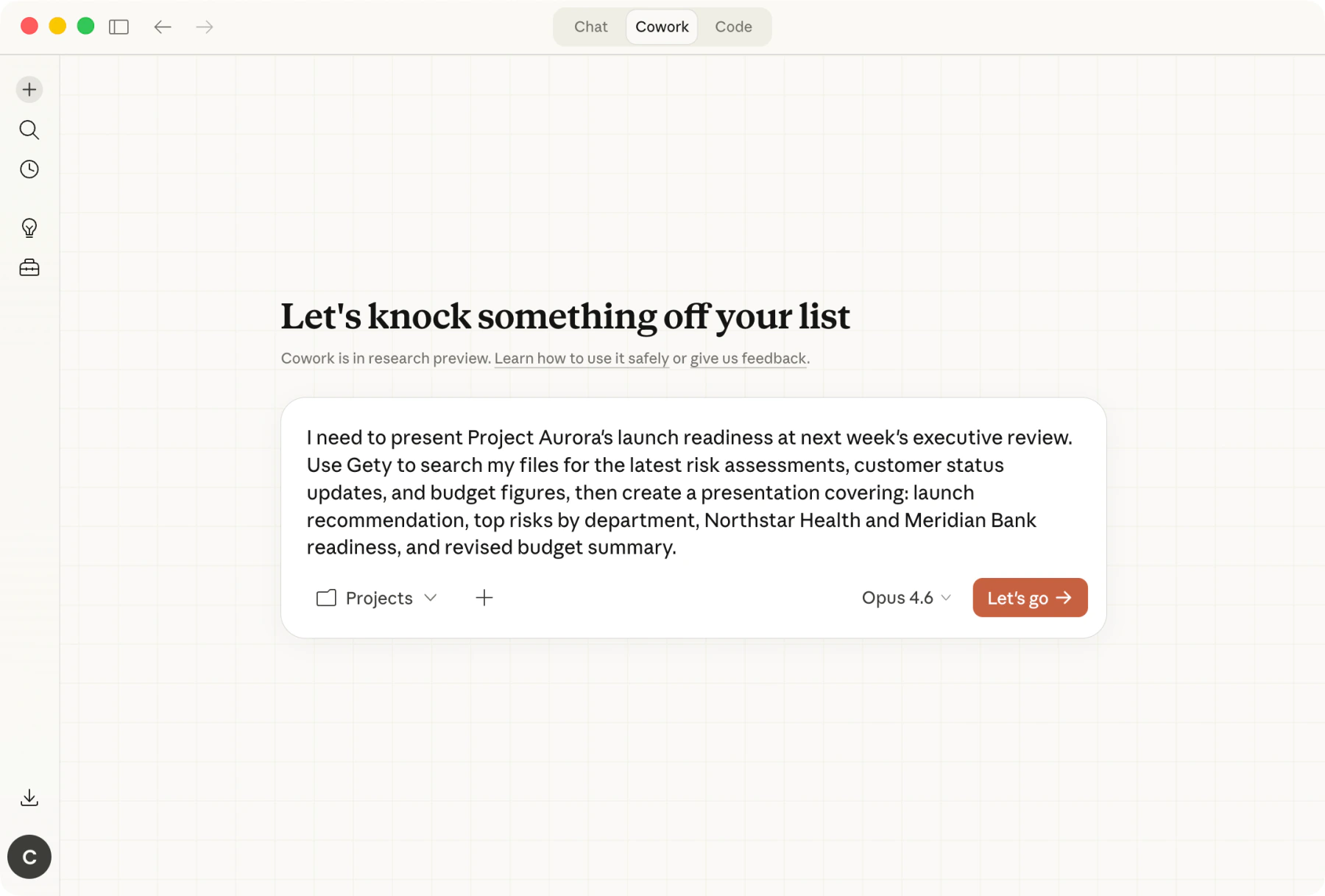 Claude Cowork: describe what you need and click Let's go
Claude Cowork will plan the task, call Gety to search your files, and retrieve the full content of each relevant document.
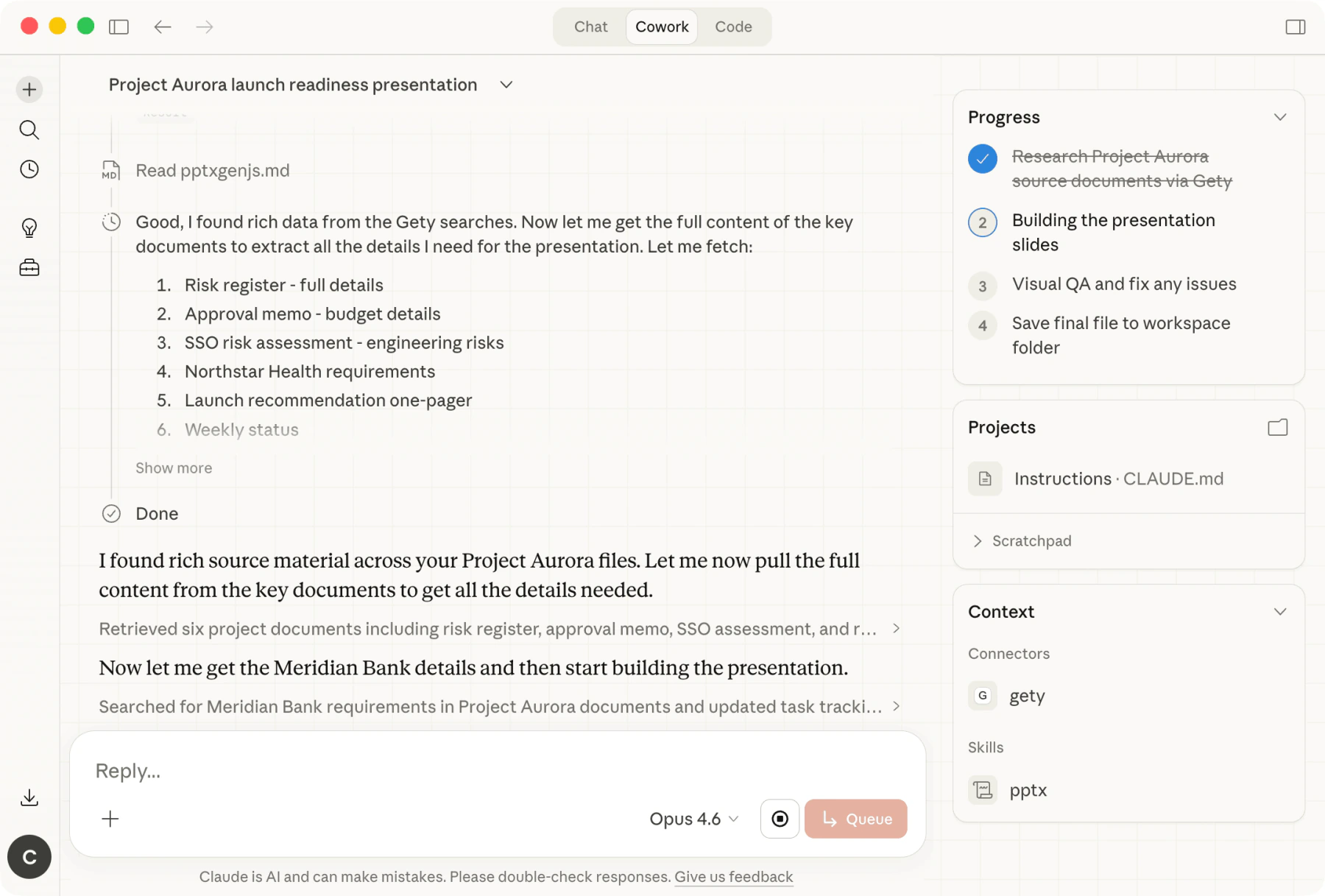 Claude Cowork: searching your files through Gety and pulling the details it needs
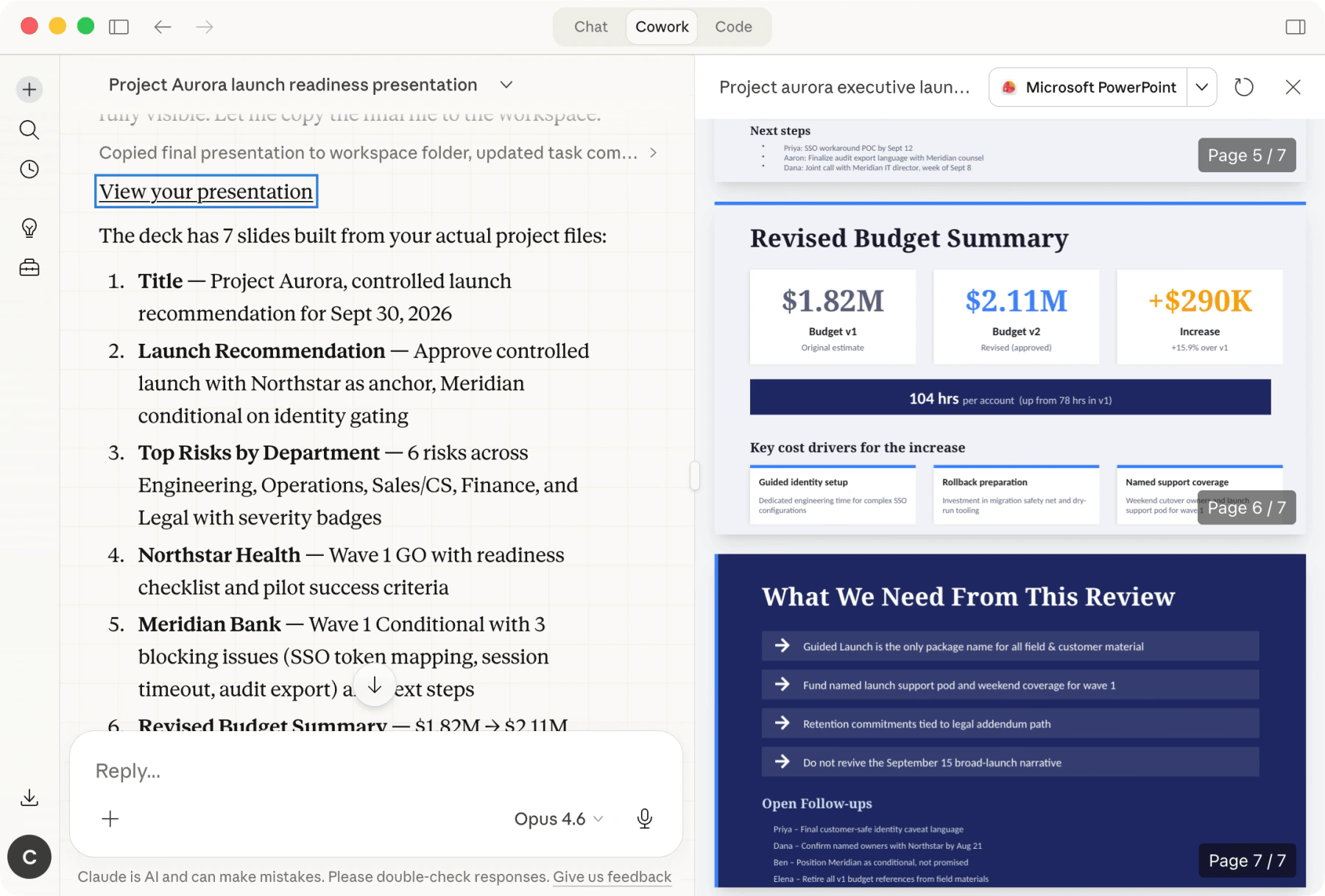
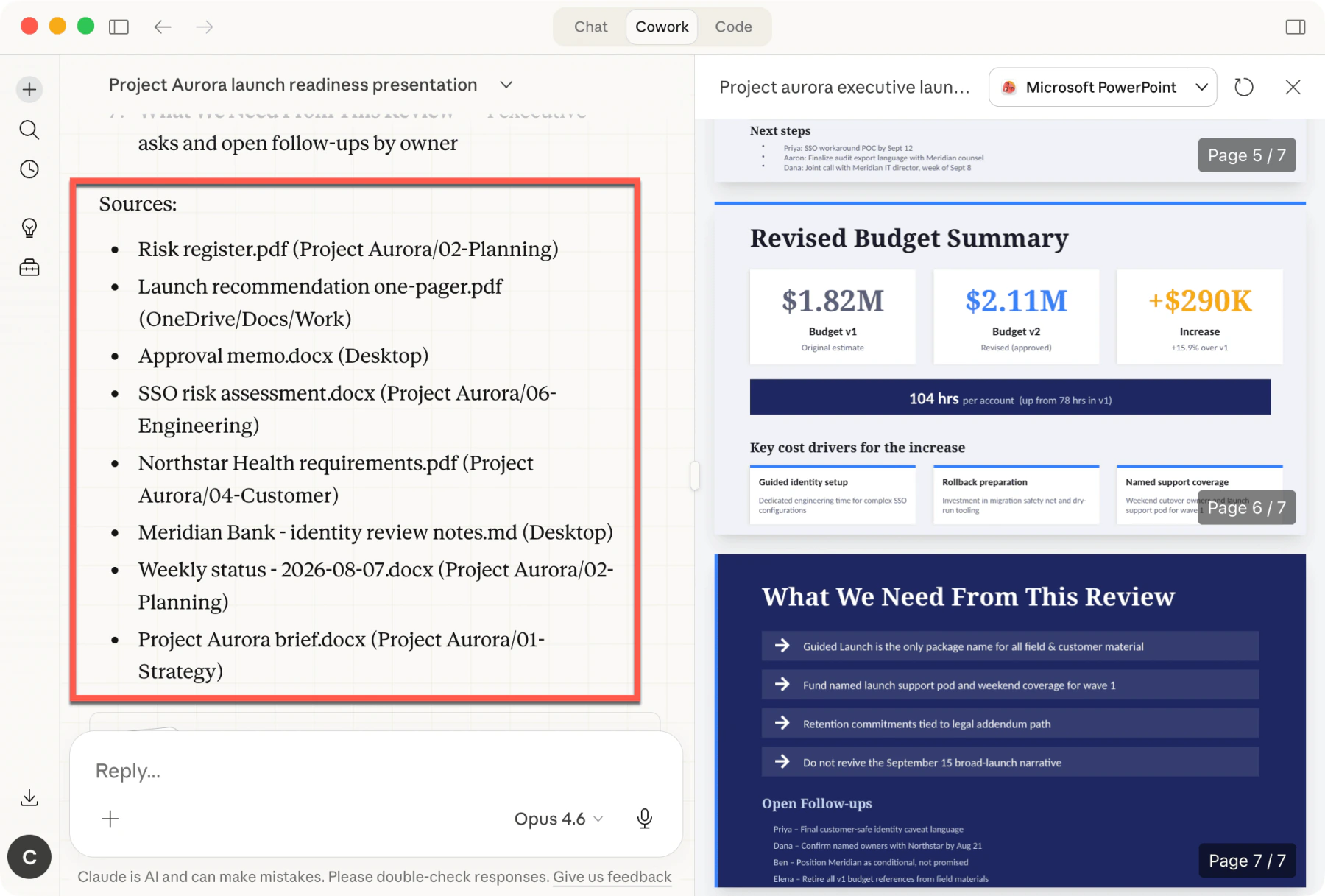
The finished presentation is built from files scattered across your computer — a risk register in your project folder, an approval memo on your Desktop, a launch recommendation shared via OneDrive, and personal notes you drafted earlier. Every claim is traceable to its source document.
Claude Cowork: the finished 7-slide presentation with real data from your files
Notice the sources listed on the left — they come from across the computer, not a single folder. Gety searched your Desktop, OneDrive, project directories, and everywhere else your files live, then Claude Cowork pulled them together into one coherent presentation.
Tips
- Gety must stay running in the background for Claude to access your files
- If Claude does not seem to use Gety, try mentioning "use Gety" or "search my local files" in your prompt
- To control what Claude can see, adjust Data Sharing settings in Gety → Settings → AI Integrations. Choose Ask every time to review each request, or Always Allow for uninterrupted workflows