Connect Gety to Claude Code
Connect Gety to Claude Code, and Claude Code can work with all your local files directly from your terminal — search scattered documents, analyze them, and produce structured reports and briefings in seconds.
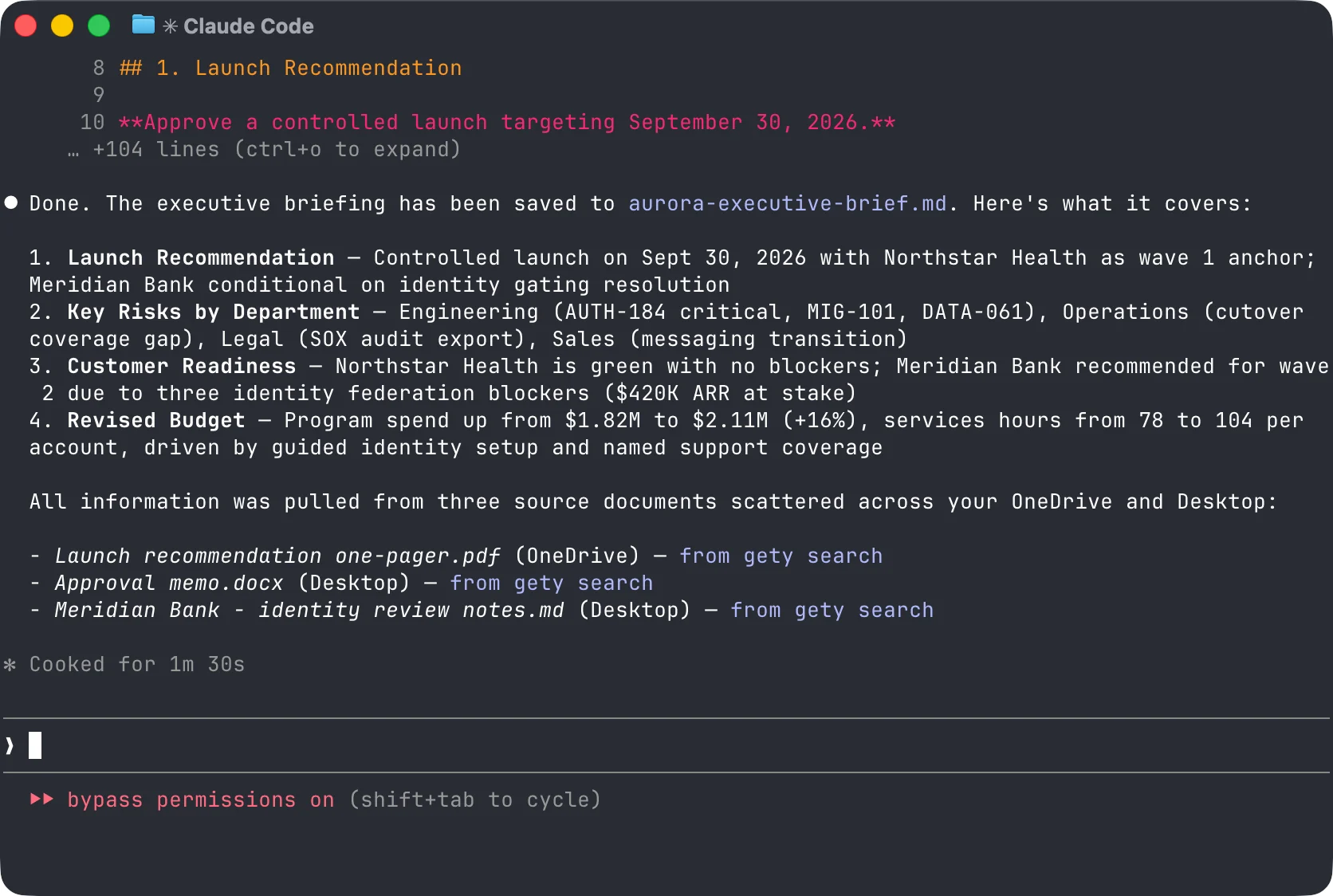
Claude Code is a command-line tool that runs in your terminal. If you prefer a graphical interface, see Connect Gety to Claude & Claude Cowork.
Prerequisites
- Gety is installed and running with at least one folder indexed
- Claude Code is installed (
npm install -g @anthropic-ai/claude-code)
Set up
- Open Gety → Settings → AI Integrations and click Claude Code under AI Apps
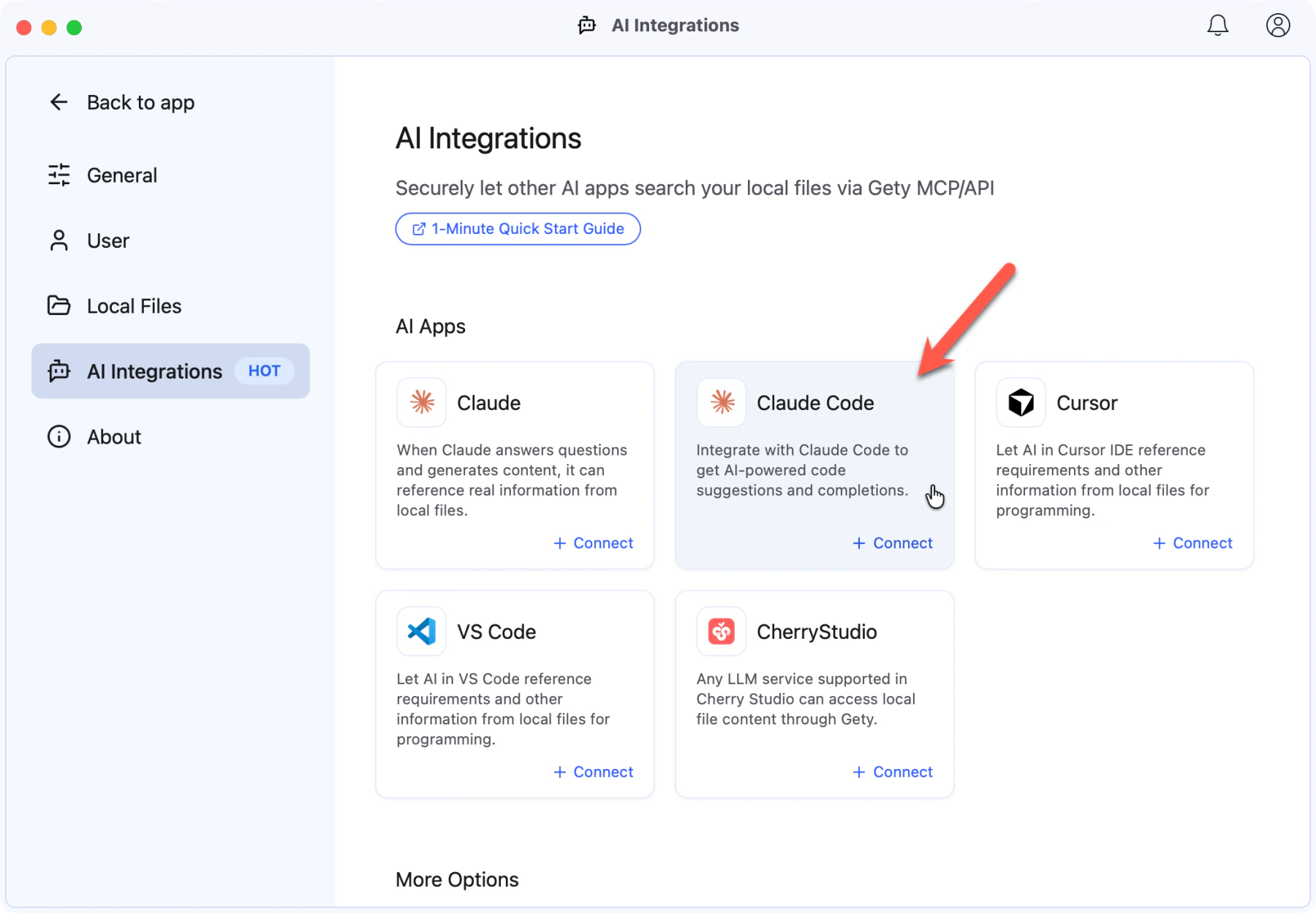 Gety → Settings → AI Integrations: click Claude Code under AI Apps
- Gety shows a dialog with ready-to-paste commands. Choose the scope that fits your workflow:
- Current Project Only — the MCP server is available only in this project
- All Projects — the MCP server is available everywhere
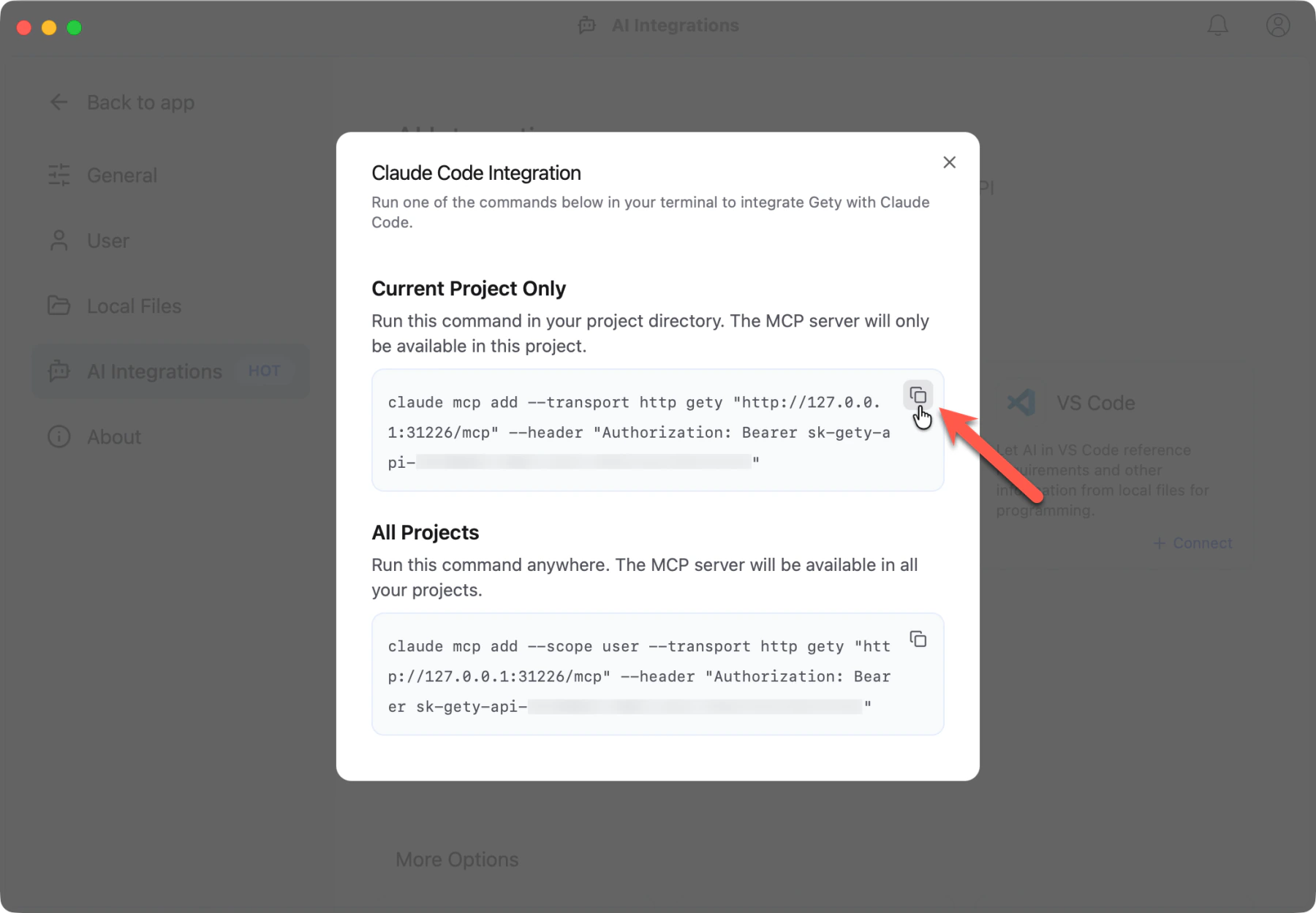 Gety: copy the command for your preferred scope
- Open your terminal, navigate to the project directory where you want to use Gety, then paste and run the command
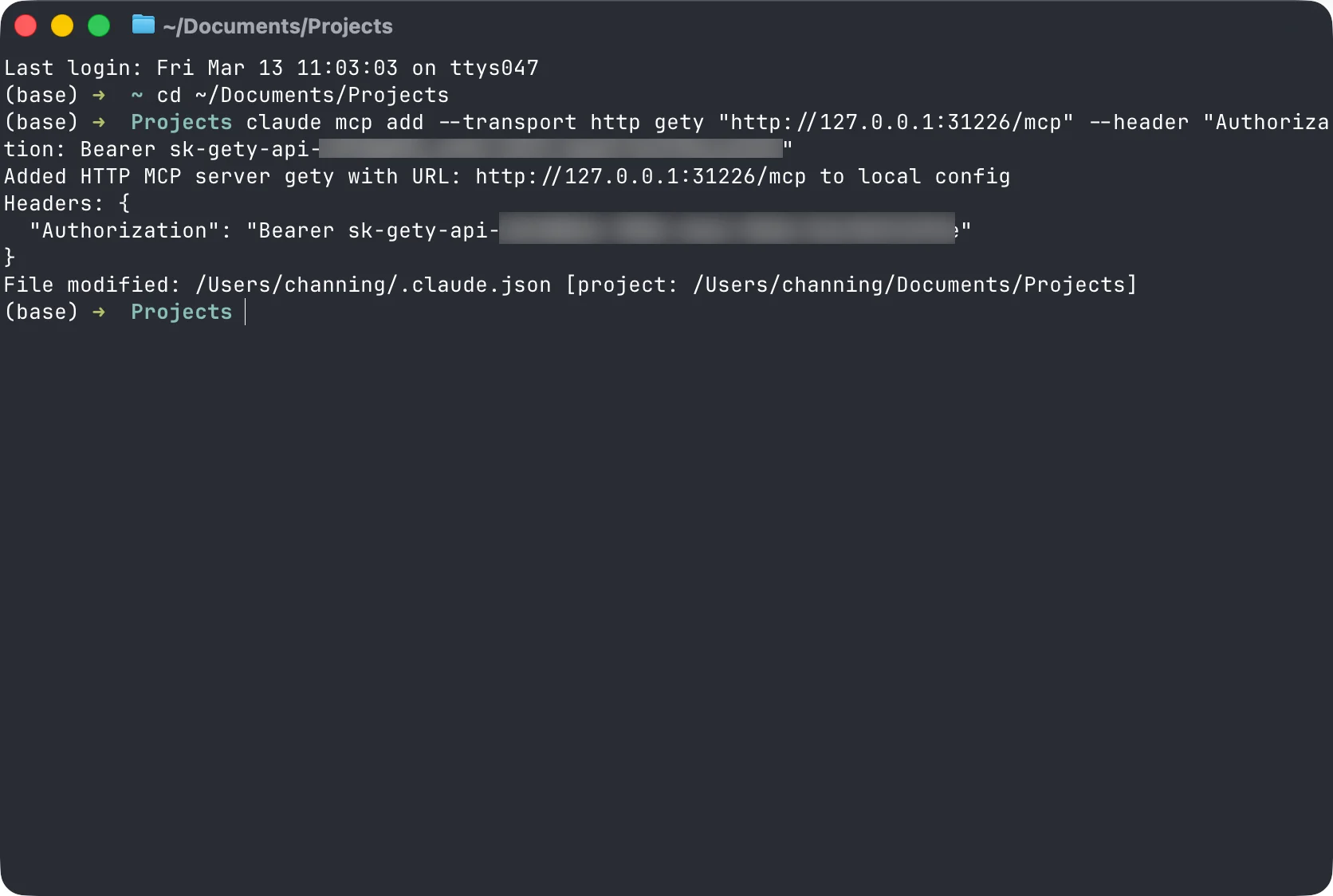 Terminal: the MCP server is added and ready to use
Use Claude Code with your local files
Open Claude Code in your terminal and try a prompt like:
Use Gety to search my files for all Project Aurora launch materials. Create an executive briefing document covering the launch recommendation, key risks by department, customer readiness for Northstar Health and Meridian Bank, and the revised budget summary. Save it as aurora-executive-brief.md.
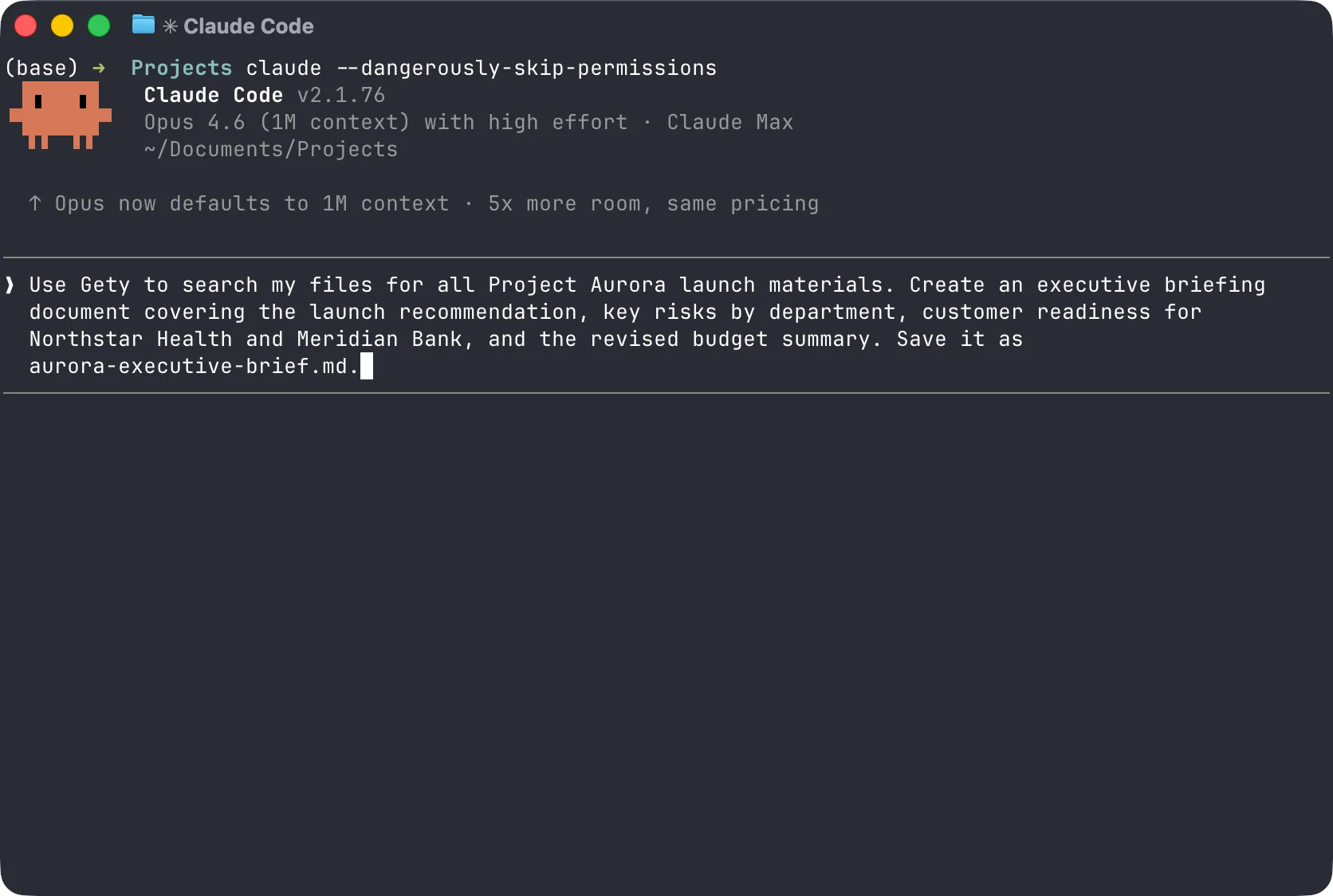 Claude Code: describe what you need in the terminal
Claude Code will call Gety to search your files, retrieve the relevant documents, and generate the briefing.
The finished document draws from files scattered across your computer — a launch recommendation shared via OneDrive, an approval memo on your Desktop, and personal notes you drafted earlier. Claude Code lists the sources so you can verify every claim.
Claude Code: executive briefing generated in 30 seconds, with sources from across your computer
Tips
- Gety must stay running in the background for Claude Code to access your files
- If Claude Code does not seem to use Gety, try mentioning "use Gety" or "search my local files" in your prompt
- To control what Claude Code can see, adjust Data Sharing settings in Gety → Settings → AI Integrations. Choose Ask every time to review each request, or Always Allow for uninterrupted workflows