Connect Gety to Codex
Connect Gety to Codex so it can search and reference your local files while working on tasks.
Prerequisites
- Gety is installed and running with at least one folder indexed
- Codex is installed on your computer
Step 1: Create an MCP integration in Gety
Open Gety → Settings → AI Integrations. Under More Options, click MCP.
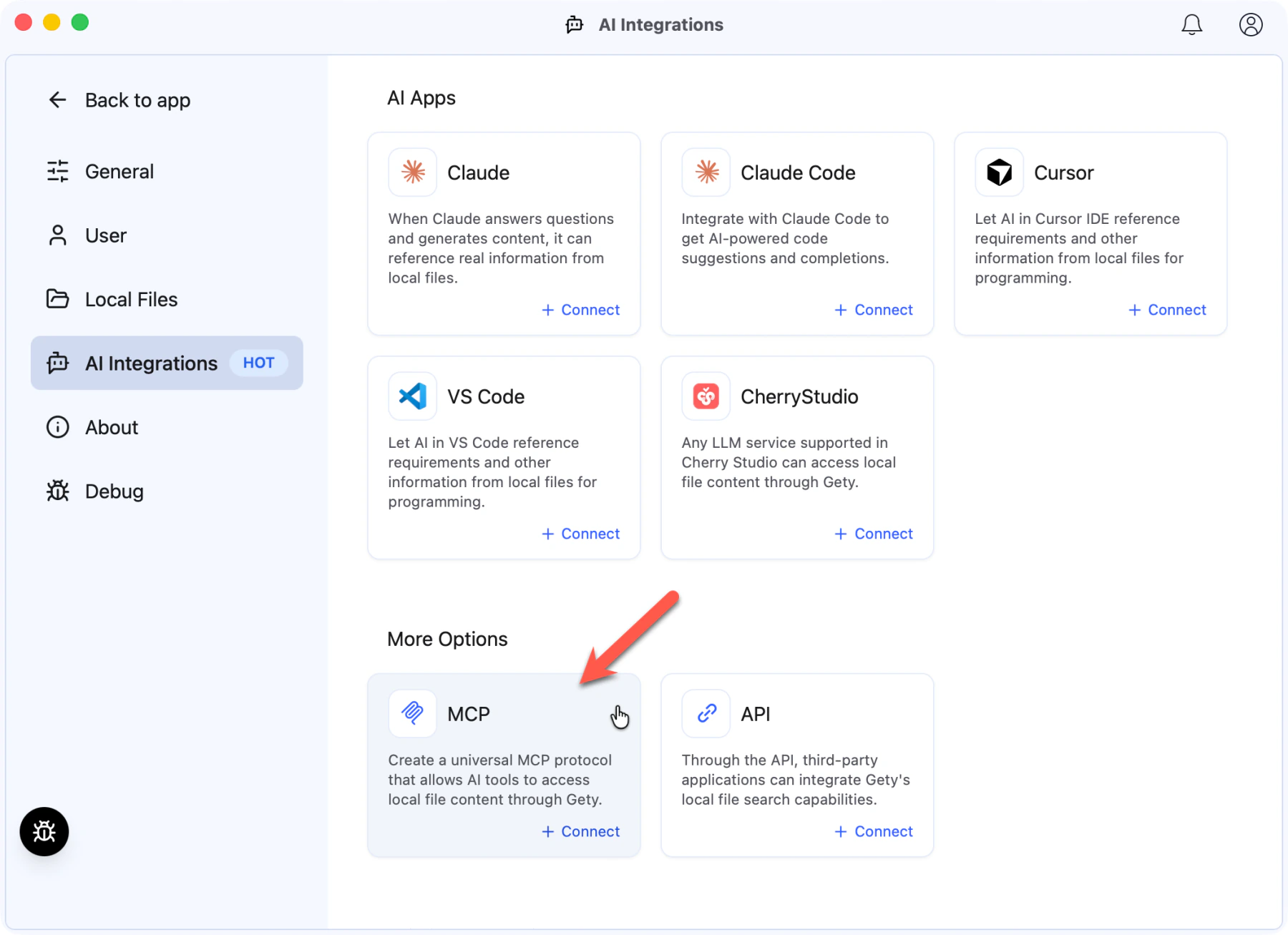 Gety → Settings → AI Integrations: click MCP under More Options
In the dialog that appears, type Codex as the name and click Create.
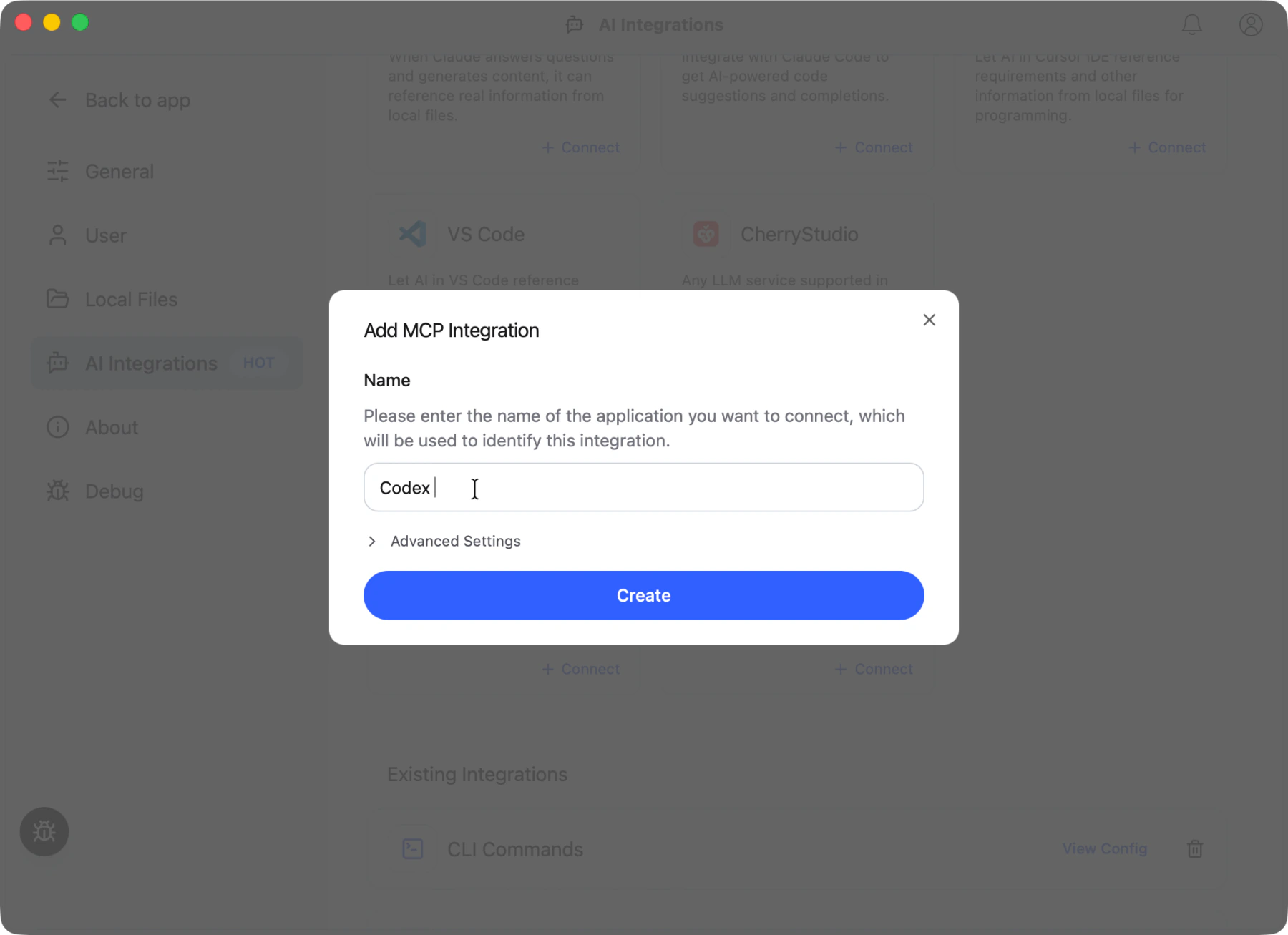 Gety: name the integration "Codex" and click Create
Step 2: Copy the URL and authorization header
After creating the integration, click View Config next to it. You need two values from this panel:
- URL — copy the exact URL shown by Gety. The default local URL is
http://127.0.0.1:31226/mcp - HTTP Headers —
Authorization: Bearer sk-gety-api-xxxxx(your actual key)
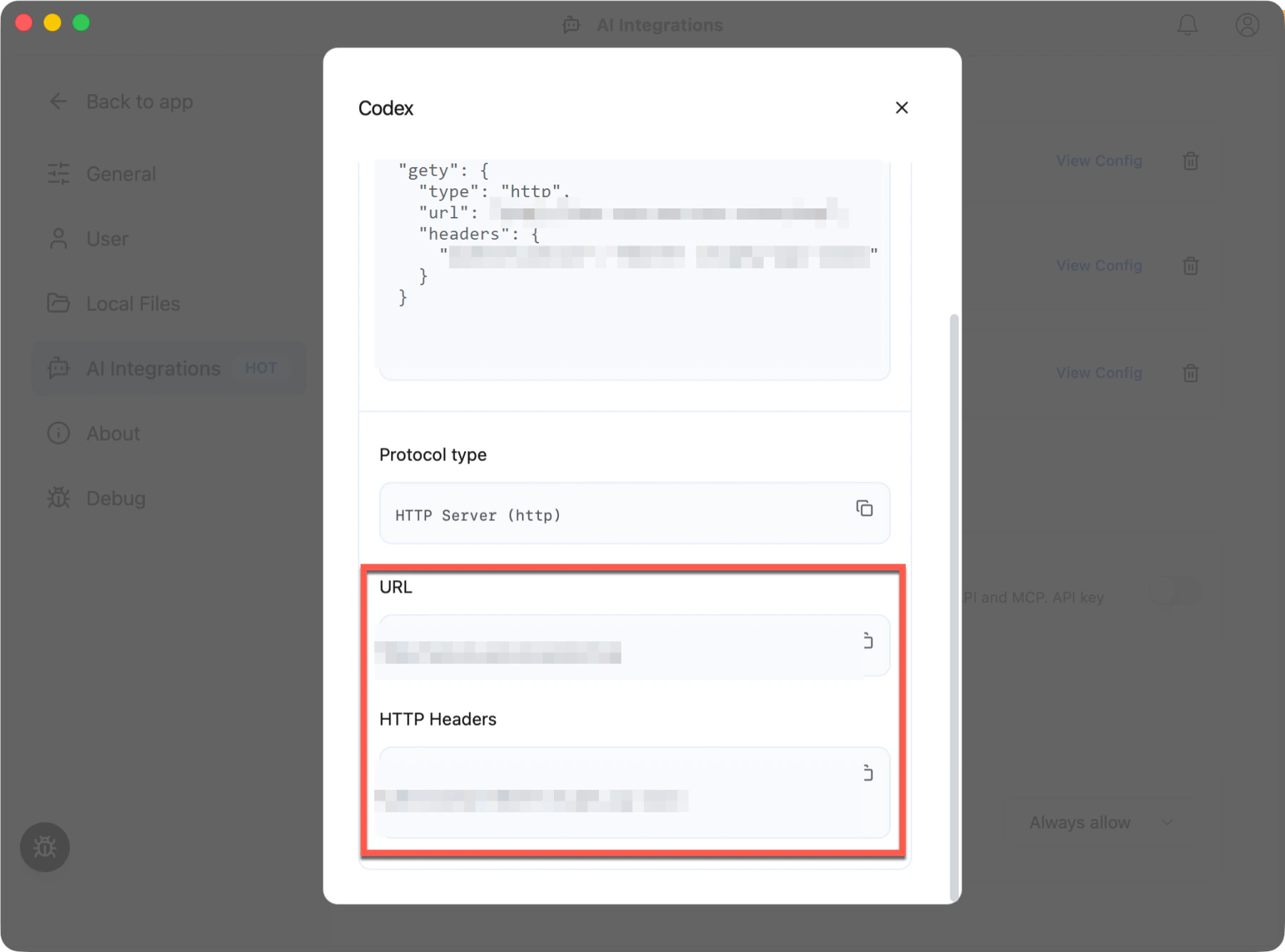 Gety: copy the URL and Authorization header from View Config
Keep this window open while you set up Codex.
Step 3: Add the MCP server in Codex
Open Codex → Settings → MCP servers and add a new server:
- Set Name to
Gety - Select the Streamable HTTP tab
- Paste the URL shown by Gety
- Under Headers, add a header with key
Authorizationand paste theBearer sk-gety-api-xxxxxvalue from Gety - Click Save
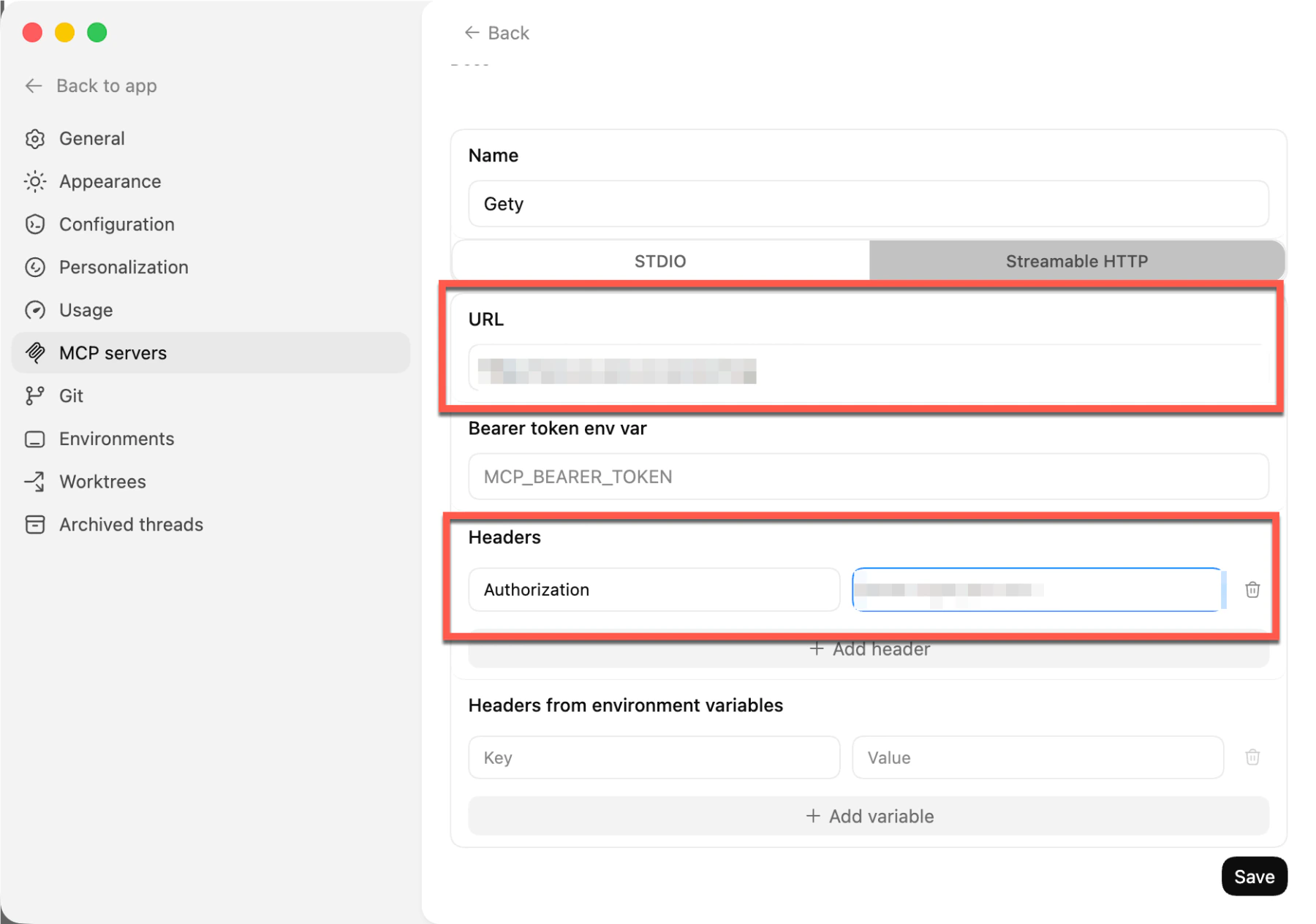 Codex → Settings → MCP servers: paste the URL and Authorization header from Gety
Step 4: Use Codex with your local files
Start a new Codex task and try a prompt like:
Search my local files with Gety for marketing ideas and plans related to Project Aurora. Summarize the key points and save the result as a document in this project.
Codex will call Gety's MCP tools to search your indexed files and use the results to complete the task.
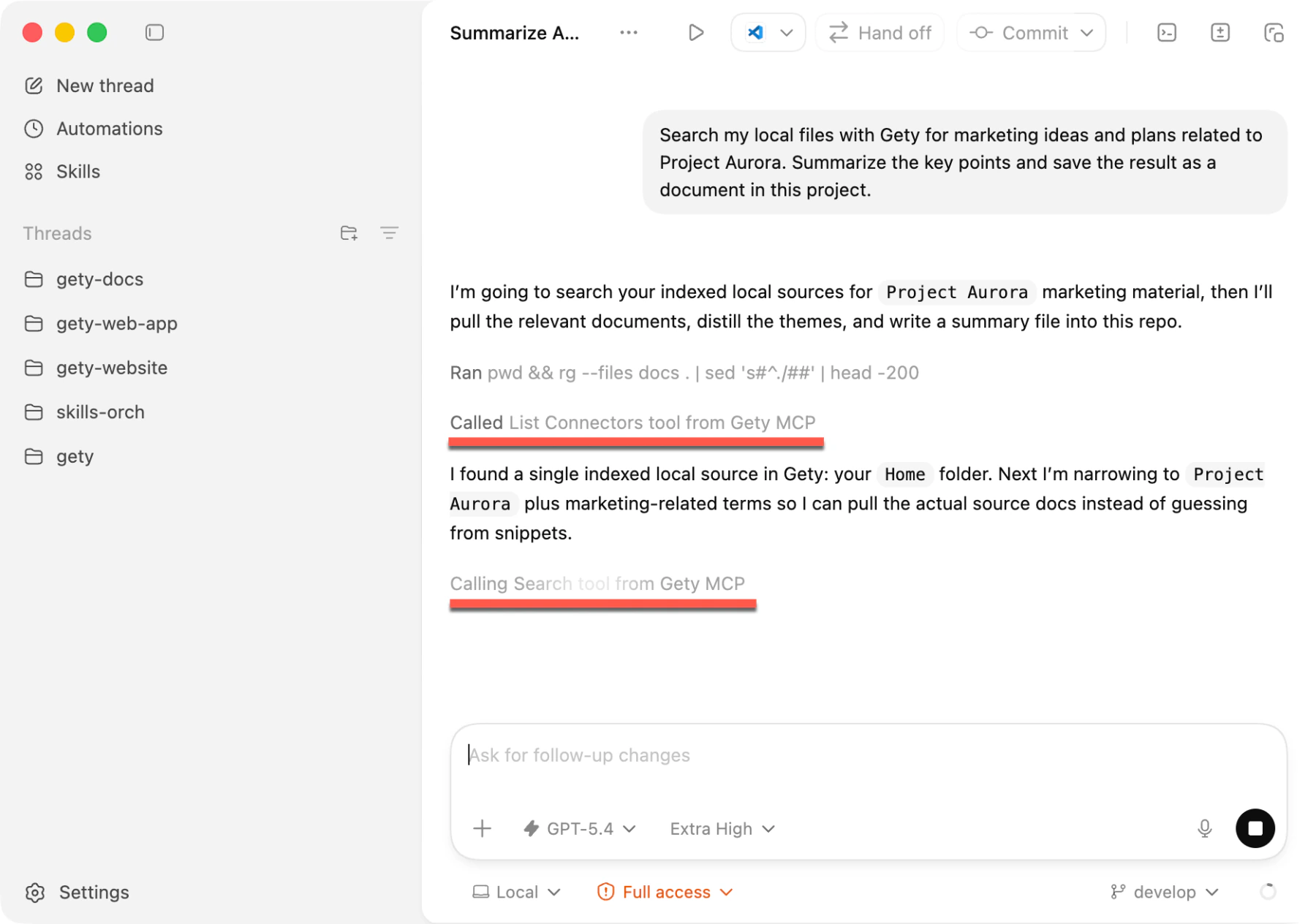 Codex: calling Gety MCP to search local files and complete the task
Tips
- Gety must stay running in the background for Codex to access your files
- If Codex cannot connect, check that the URL and authorization header match what Gety shows in View Config
- To control what Codex can see, adjust Data Sharing settings in Gety → Settings → AI Integrations. Choose Ask every time to review each request, or Always Allow for uninterrupted workflows